



September 2026 Release Notes
See what's new in Salesloft!
Release Date: September 9, 2026
In this article, we will highlight Salesloft's newest features and functionality. New features are releasing in the following product areas:
Salesloft
Re-Introducing: Salesloft
Salesloft is officially our go-forward name and brand. As of September 2, 2026, Salesloft and Clari are one unified company under the Salesloft name, and you will begin to see the refreshed brand and logo applied progressively across our platforms in the coming weeks.
Who: All Salesloft and Clari users.
Where: Across the Salesloft and Clari platforms.
How: No action required — the rebrand will be applied automatically. In the meantime, explore what's new:
- Press Release
- Rebrand Blog
- New Website
- New Vision Video
- Take a Tour
- 2026 Revenue Benchmark Report: U.S. Edition | UK Edition
Admins: If you'd like to update your SSO configuration with the new Salesloft logo, you can download the image below.

Salesloft Chrome Side Panel & Profile View
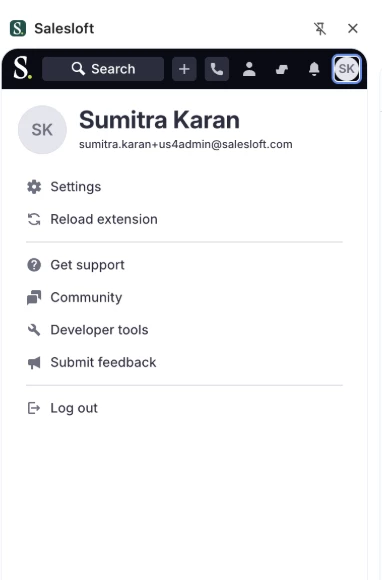
The Salesloft Connect Chrome extension has been redesigned as a persistent Side Panel that stays open as you navigate between browser tabs, eliminating the pop-out experience. A new Profile View centralizes settings, extension controls, and troubleshooting in one place.
Who: All Salesloft users with the Chrome extension installed.
Where: Salesloft Connect Chrome Extension accessible via the Salesloft browser icon.
How: Click the Salesloft icon in your browser extensions to open the Side Panel. Access settings, reload the extension, or log out directly from the Profile View by clicking your avatar in the panel header. To learn more, see the Salesloft Chrome Extension Overview article.
Ask Salesloft in the Chrome Extension
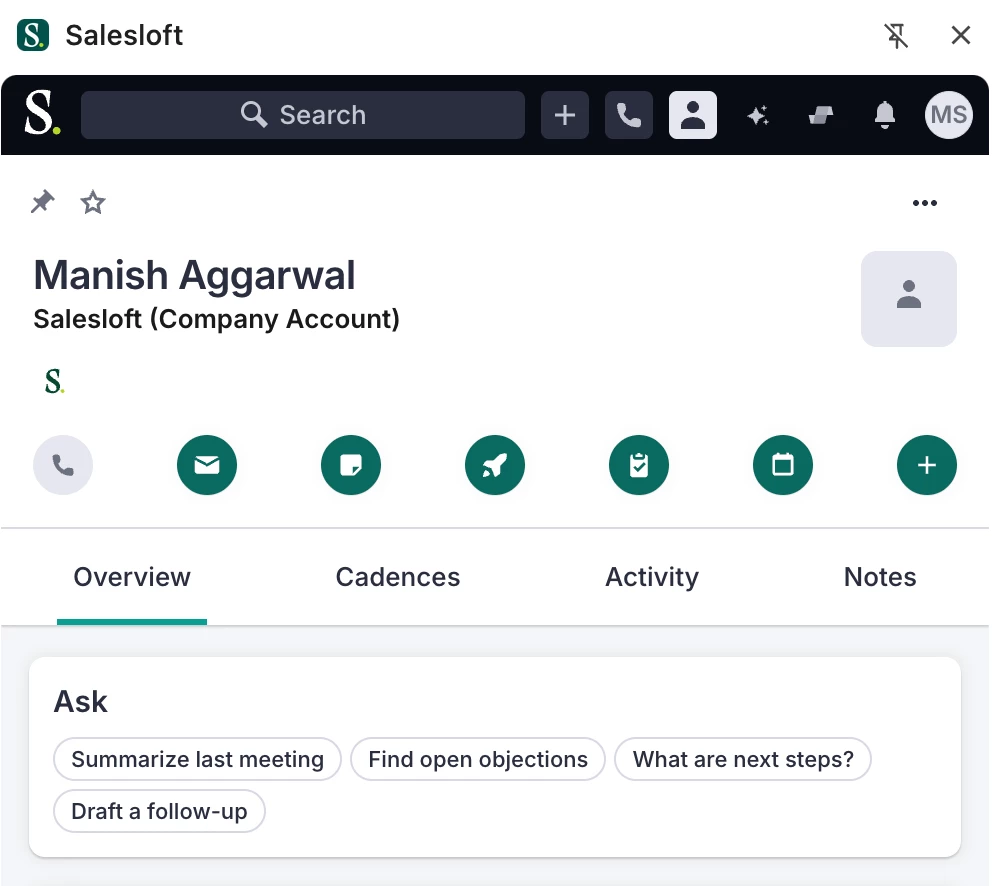
Ask Salesloft brings a conversational AI interface directly into the Chrome Extension side panel, giving reps instant, grounded context on any contact or account without leaving their browser. A signal badge panel surfaces active cadences, open tasks, inbound pricing emails, and pending voicemails, while a natural-language input lets reps ask questions and generate drafted responses grounded exclusively in their verified Salesloft interaction history.
Who: Available to Salesloft users with Chrome Extension access and the required AI entitlements enabled.
Where: Salesloft Chrome Extension side panel — Overview tab on Person and Account record views.
How: Open any contact or account record in the Chrome Extension side panel and navigate to the Overview tab. Review the signal badge panel for outstanding items, then type a question into the "Ask anything" input. If the response includes a draft email, the native compose window opens automatically pre-populated with the content. To learn more, see the Ask Salesloft in the Chrome Extension article.
Tags in the Chrome Extension & Outlook Connect Side Panel
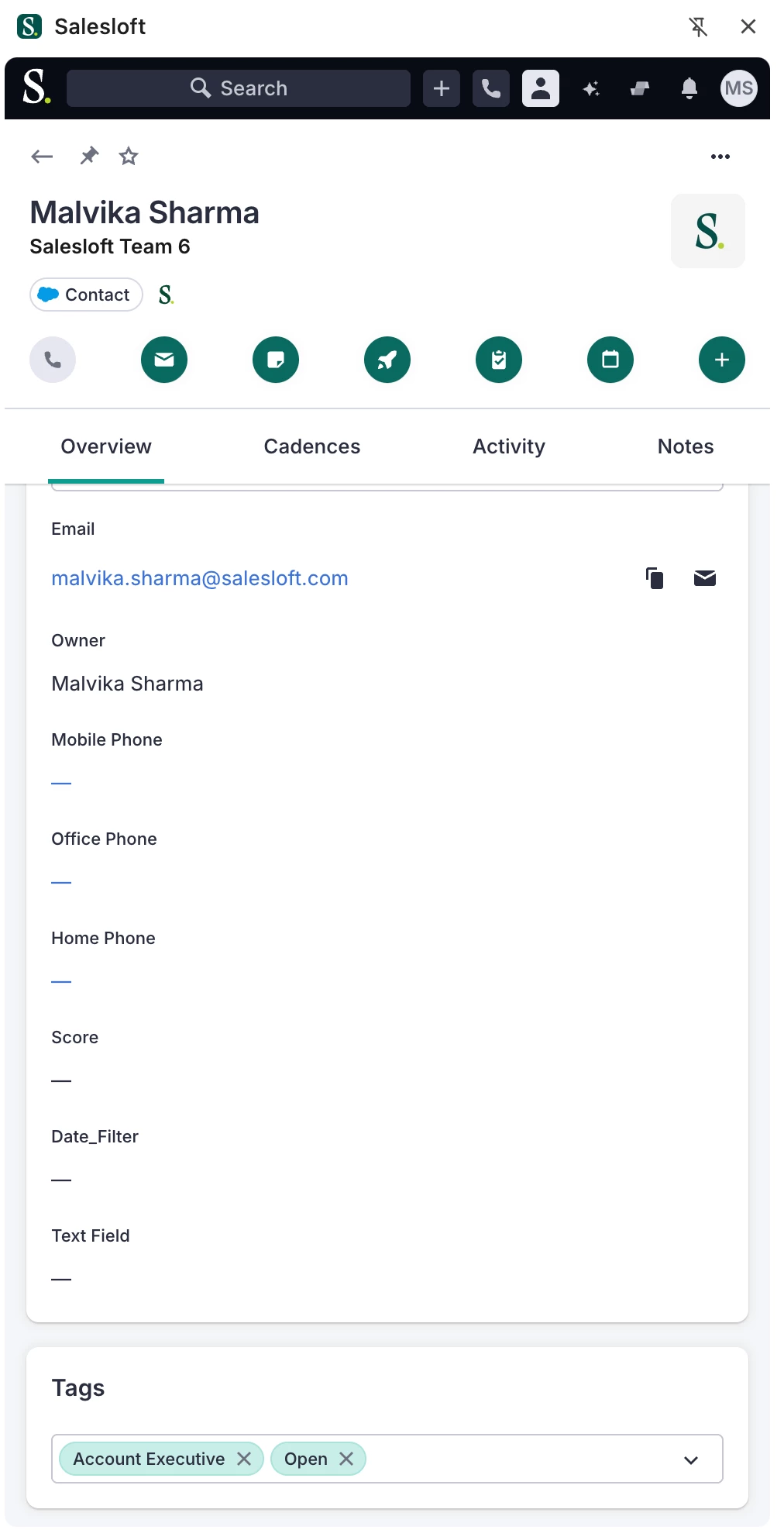
Tags are now available directly in the Salesloft Chrome Extension and Outlook Connect side panels. Reps can view, apply, create, and remove tags on contact and account records without leaving their browser or inbox.
Who: Available to all Salesloft users with the Chrome Extension or Outlook Connect installed. Users must have team-level permissions to view and apply tags.
Where: Chrome Extension and Outlook Connect side panel. The Tags card is under the Overview tab on Person and Account record views.
How: Open any contact or account record in the side panel and navigate to the Overview tab. Click the Tags card to view existing tags, select from the autocomplete dropdown, type to filter, or enter a new tag name to create one inline. Click the X on any tag chip to remove it. To learn more, see the Tag Salesloft Records article.
Get Meetings API: Recording Failed Response
The Salesloft Public API now links calendar meeting events directly to their corresponding Conversations recordings, giving customer developers programmatic visibility into which meetings were recorded, which were not, and why. Teams can use this data to automate recording compliance tracking and build custom dashboards without manual data workarounds.
Who: Available to customer developers and sales operations teams using the Salesloft Public API. No admin configuration required. This release covers Salesloft Conversations (traditional CI); Copilot support will follow in a future phase.
Where: Salesloft Public API — List Meetings endpoint (GET /v2/meetings).
How: Query the List Meetings endpoint and optionally pass recording_failed=true to filter for unrecorded meetings. The response includes a failed_recording_reason field on each meeting object — populated with a reason string when recording failed, or null when the meeting was recorded successfully.
Things to Note: API counts and UI report counts will not match line-for-line. The API counts unique calendar events (i_cal_uid), while the UI counts raw database logs (which include duplicate bot retries). Lower API numbers are expected behavior.
To learn more, check out the Developer Portal for the Meetings API.
AI Snippets
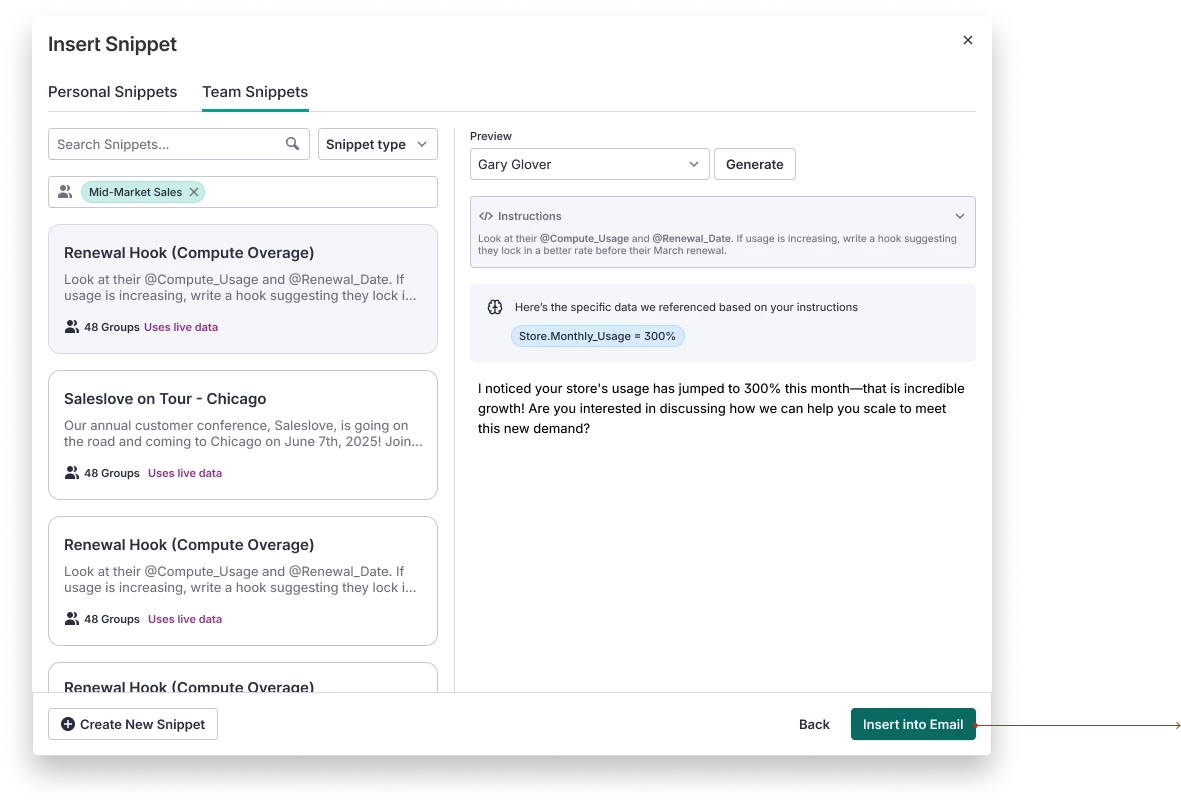
AI Snippets are pre-built, signal-based message starters that surface in the Salesloft email composer automatically. When a rep opens a Cadence step or Task, relevant snippets appear based on account characteristics like industry or funding stage — ready to insert with one click, with contact and account details already filled in.
Who: Available to Salesloft Users with the Salesloft Agentic add-on. Users must access the email composer. Admins configure and manage AI Snippets in Settings. AI Snippets follow existing Snippet permissions and settings.
Where: Salesloft email composer. AI Snippet selection modal surfaces when opening a Cadence step or Task. Snippet creation is managed under Settings > Artificial Intelligence > Snippets tab.
How: Admins create AI Snippets by navigating to the Snippets tab and selecting "AI created" during the snippet creation flow. Once created, snippets surface automatically in the composer based on account signals. Reps click the desired snippet to insert it, with dynamic variables already resolved. To learn more, see the Insert and Create AI Snippets in Salesloft article.
Conversation Intelligence
Copilot is Now Conversation Intelligence
Clari Copilot is being renamed Salesloft Conversation Intelligence (CI), reflecting the unified Salesloft brand. You will see the updated name, logo, and terminology applied progressively across the platform — including navigation, settings, the recording bot name, and shared calls, — beginning September 1, 2026.
Who: All Clari Copilot users. Net-new Salesloft customers will see the new branding immediately.
Where: Across Copilot, Clari, and Salesloft — including navigation labels, admin settings, the in-meeting recording bot, and shared call pages.
How: No action required. Branding updates will be applied automatically. To learn more, see the Conversation Intelligence in Salesloft article.
Conversation Intelligence (formerly Copilot) Data Retention Policy Update
Conversation Intelligence (formerly Copilot) is standardizing its media retention policy, limiting audio and video recording storage to a maximum of 3 years across all customer accounts. Transcripts, AI-generated insights, and metadata will remain available beyond the retention window.
Who: All Conversation Intelligence (formerly Copilot) customers. Accounts currently configured beyond a 3-year retention window will be contacted directly ahead of the change.
Where: Conversation Intelligence (formerly Copilot)
When: This policy will be enforced beginning September 15, 2026.
How: Admins can now configure granular retention controls, setting shorter retention windows for audio and video recordings while retaining game tapes and shared snippets for longer — up to 3 years. To learn more, check out our Copilot Data Retention Policy.
Clari Forecast
Clari Forecast MCP
The Clari Forecast MCP makes live forecast data available through AI assistants via natural language queries, so revenue leaders, managers, and RevOps teams can get instant answers to forecast questions without navigating the Clari UI. Phase 1 surfaces seven forecast tools covering tab discovery, grid values, scope hierarchy, time periods, historical snapshots, field configuration, and related deal entities — all scoped automatically to each user's existing Clari permissions.
Who: Available to Clari Forecasting customers with a Claude or ChatGPT Business or Enterprise subscription. Requires the Forecasting tools for MCP toggle to be enabled by a Clari Admin.
Where: Clari Studio > Integrations > AI Settings > MCP. Connected via Claude and ChatGPT.
How: Admins enable the Clari MCP toggle in Clari Studio. Users connect their AI assistant and ask forecast questions in plain language — for example, "What is my team's total closed-won revenue this quarter?" or "What are the top forecast changes this week?"
To learn more, see Enable Clari Forecast MCP in Clari Studio and Connect Clari Forecast MCP in Claude Desktop articles.