



October 2026 Release Notes
See what's new in Salesloft!
Release Date: October 14, 2026
In this article, we'll highlight Salesloft's newest features and functionality. New features are releasing in the following product areas:
Salesloft AI
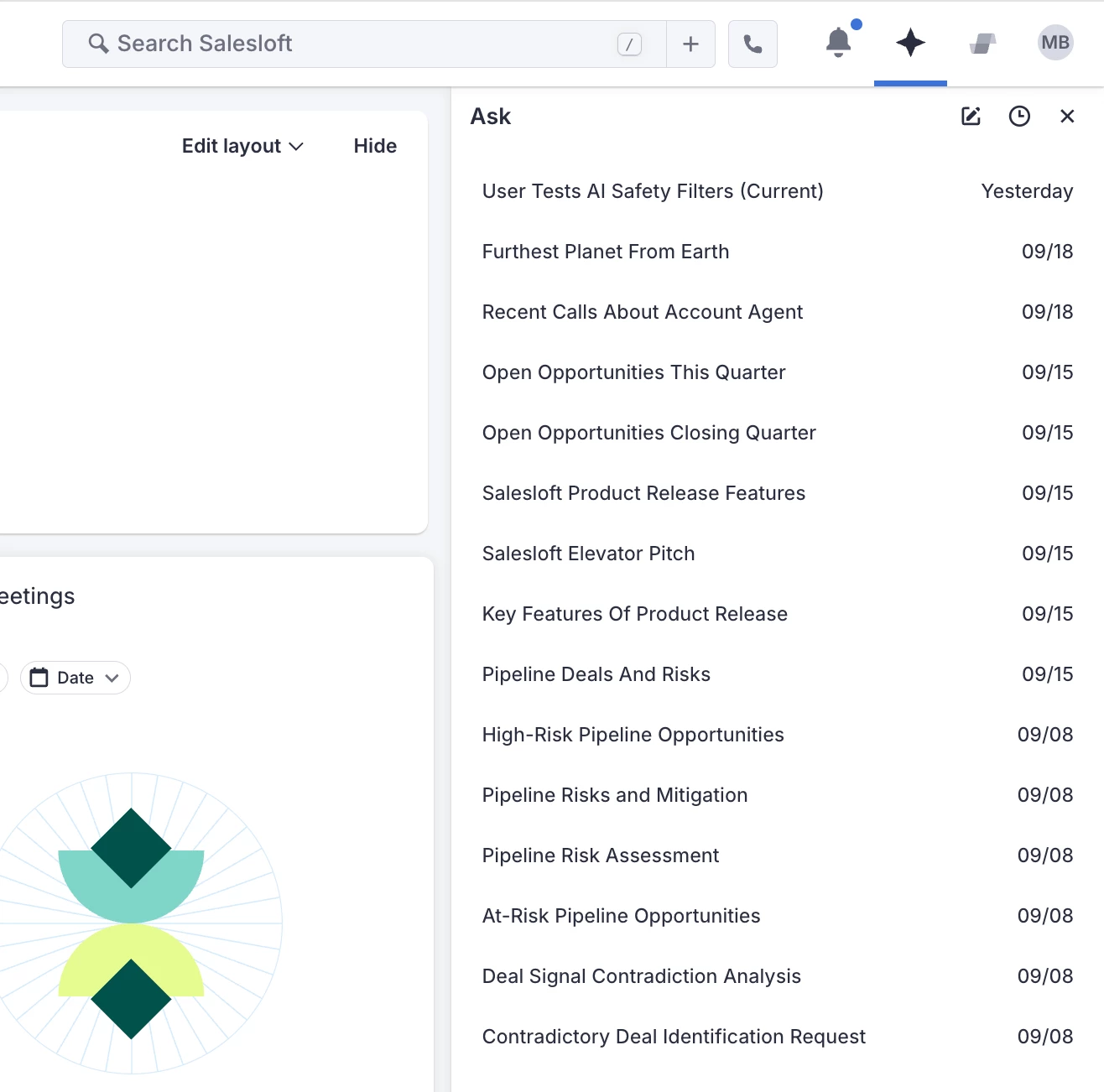
Ask Salesloft Chat History
Ask Salesloft conversations persist, so you can revisit any past chat, pick up where you left off, and reuse that context instead of re-explaining yourself. The chat panel is also resizable, and you'll see a prompt instead of a blank screen before you start a conversation.
Who: All users with access to Ask Salesloft.
Where: Ask Salesloft chat interface — click the Chat History (clock) icon to see your session list.
How: Open Ask Salesloft and click the Chat History icon to view your past sessions, sorted most recent first. Select an entry to reload that conversation, or start a new session with "New Chat." Hover over any entry to delete it. To learn more, see the Ask Salesloft: Your AI-Powered Sales Assistant article.
AI Knowledge Library - Quality Scoring
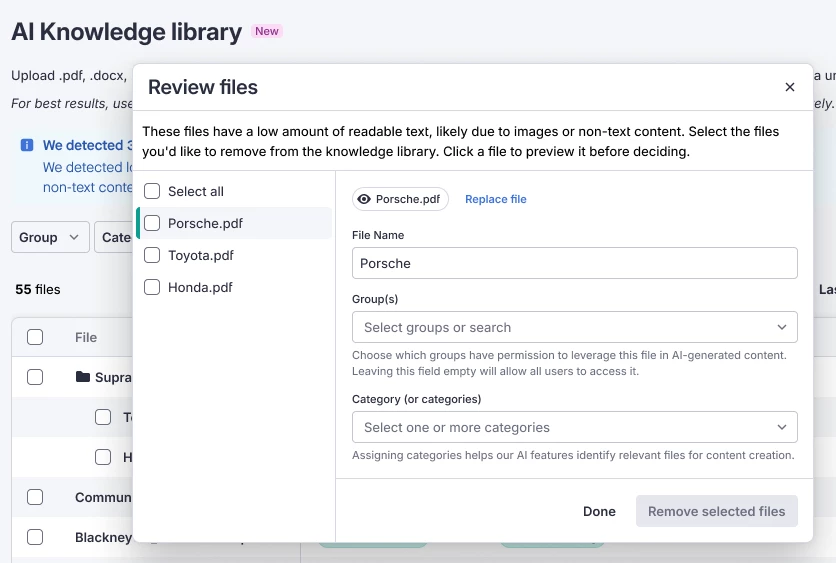
The AI Knowledge Library automatically scores the documents you upload for extraction quality. Scanned or thin-content files will be flagged before they reach the vector store and affect your AI-drafted output.
Who: Admins managing the AI Knowledge Library. Requires the AI Knowledge Library entitlement and the AIKL Content Quality Scoring flag enabled on your account.
Where: AI Knowledge Library — flagged files show a "Review Required" status, and a banner at the top of your library list surfaces existing low-quality files.
How: Upload documents as you do today; new files score automatically. To clean up existing low-quality files, click the banner at the top of your library to open the bulk review modal, then delete, ignore, or replace flagged files individually. To learn more, see the Manage AI Knowledge Library article.
Conversation Intelligence
Ask AI Improvements
Ask AI answers more of your genuine call-related questions, cites the specific part of the call each answer draws from, and reasons across the full call instead of matching on similar past text — giving you more complete, more traceable answers.
Who: All users with access to Ask AI.
Where: Ask AI in Salesloft Conversation Intelligence (Legacy Copilot), within your call records.
How: No setup needed — the improvements apply automatically to your Ask AI answers. Citations grouped by call appear alongside each answer you receive. To learn more, see the Ask AI in (Copilot) Conversation Intelligence article.
Microsoft Teams: API Ingestion (Cloud Recorder)
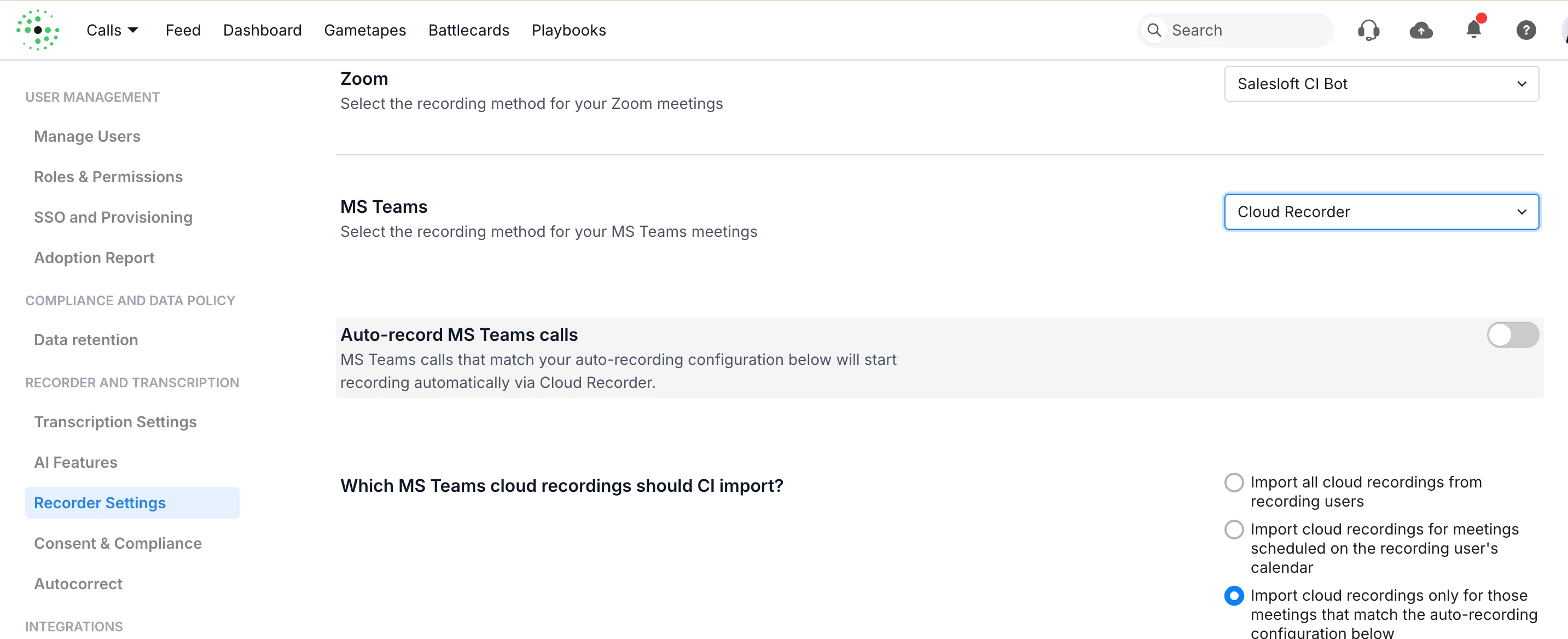
You can capture Microsoft Teams calls through Teams' own cloud recording instead of a bot joining your meeting, so your calls are still captured, summarized, and searchable even if your organization blocks third-party meeting bots.
Who: Admins configuring recording settings for Microsoft Teams. Requires your Microsoft admin to grant org-level consent to the Microsoft Graph API.
Where: Recorder Settings, under the Microsoft Teams recording method.
How: In Recorder Settings, set your Microsoft Teams recording method to Cloud Recorder, then turn on auto-record and choose which cloud recordings to import. This method has no live transcription or real-time features, and calls take longer to appear since recordings are checked for every 15 minutes. To learn more, see the Record Microsoft Teams Meetings with the Cloud Recorder in Conversation Intelligence article.
AI Themes - Enhanced Usability Release
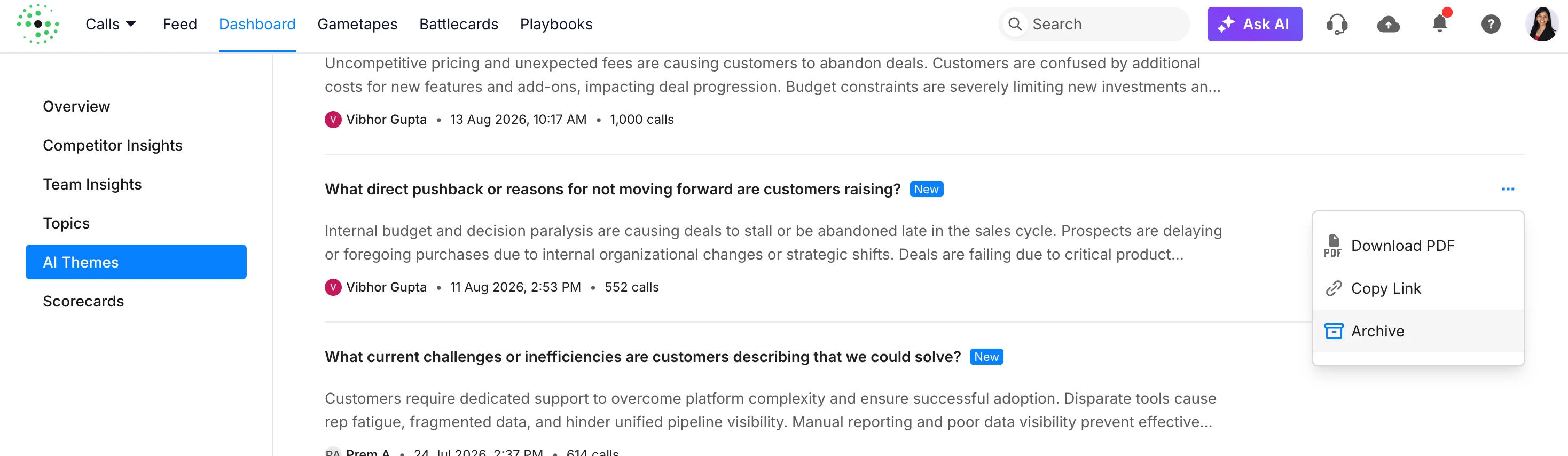
You can archive and delete theme analyses on your AI Themes dashboard, so you can declutter your active list without losing an analysis, and permanently remove the ones you no longer need.
Who: Admins with access to AI Themes on the Dashboard.
Where: AI Themes tab on the Dashboard.
How: Open the "..." options menu on any analysis and select Archive to move it out of your active list, or Unarchive to restore it. Delete is available only for analyses you've already archived, and requires confirmation since it cannot be undone. To learn more, see the AI Themes in Conversation Intelligence article.
Meetings
Standalone Calendar - Admin Settings
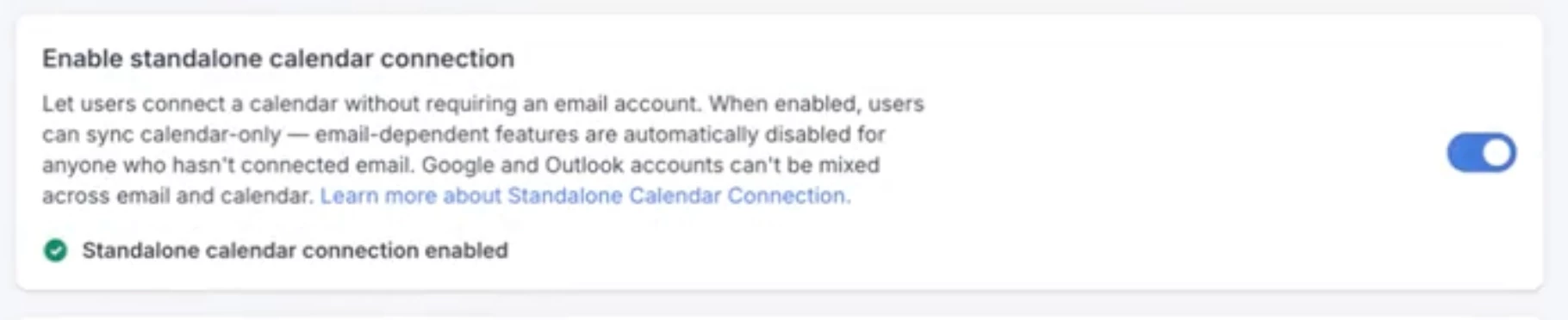
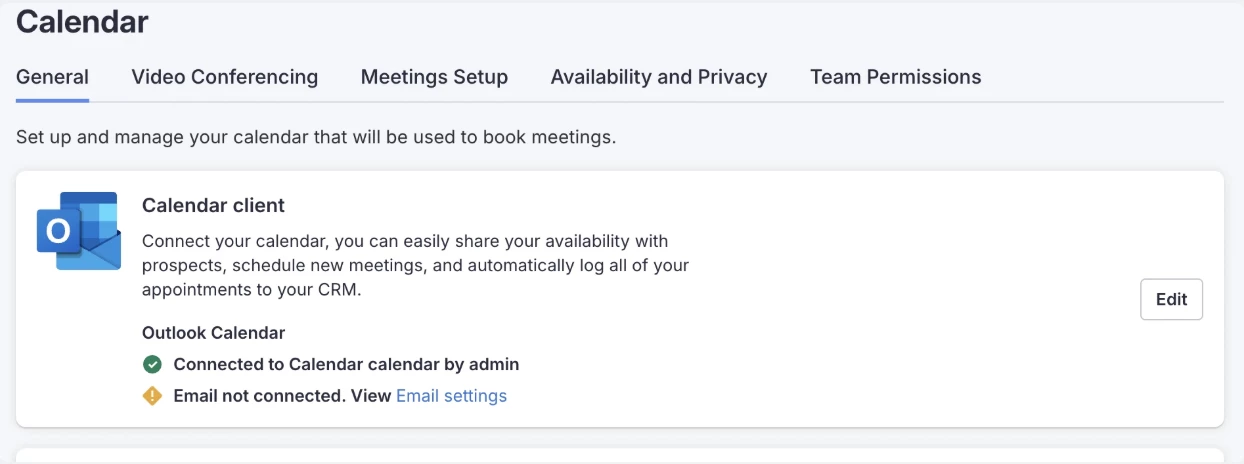
Enable standalone calendar connections for your organization, letting your users connect a Google or Outlook calendar without connecting an email inbox.
Who: Admins with permission to manage Settings.
Where: Settings > Communication > Meetings.
How: In the admin Meetings Settings, toggle on "Enable standalone calendar connection." Users will then go to Settings > Calendar to connect their calendar client independently of email. Enabling this setting is also a prerequisite for Domain-Level Calendar Authentication. To learn more, see the Manage Meetings article.
Domain Level Calendar Authentication - Outlook
Centrally authenticate and manage Microsoft Outlook Calendar connections for your entire team at once, instead of requiring each user to connect individually.
Who: Admins on Microsoft 365/Outlook environments. Requires Standalone Calendar Connection to be enabled first.
Where: Settings > Communication > Meetings, on the Microsoft Outlook card.
How: In Settings > Communication > Meetings, enable "Enable standalone calendar connection" and "Enable domain level access and permissions," then connect the Microsoft Outlook card using your Azure Tenant ID, Client ID, Client Secret, Workspace Email, and Workspace Domain. Use the Manage button to bulk connect or disconnect your users. To learn more, see the Manage Domain Level Access in Salesloft article.
Extensions
Chrome Extension: Conversation Intelligence in Overview Tab
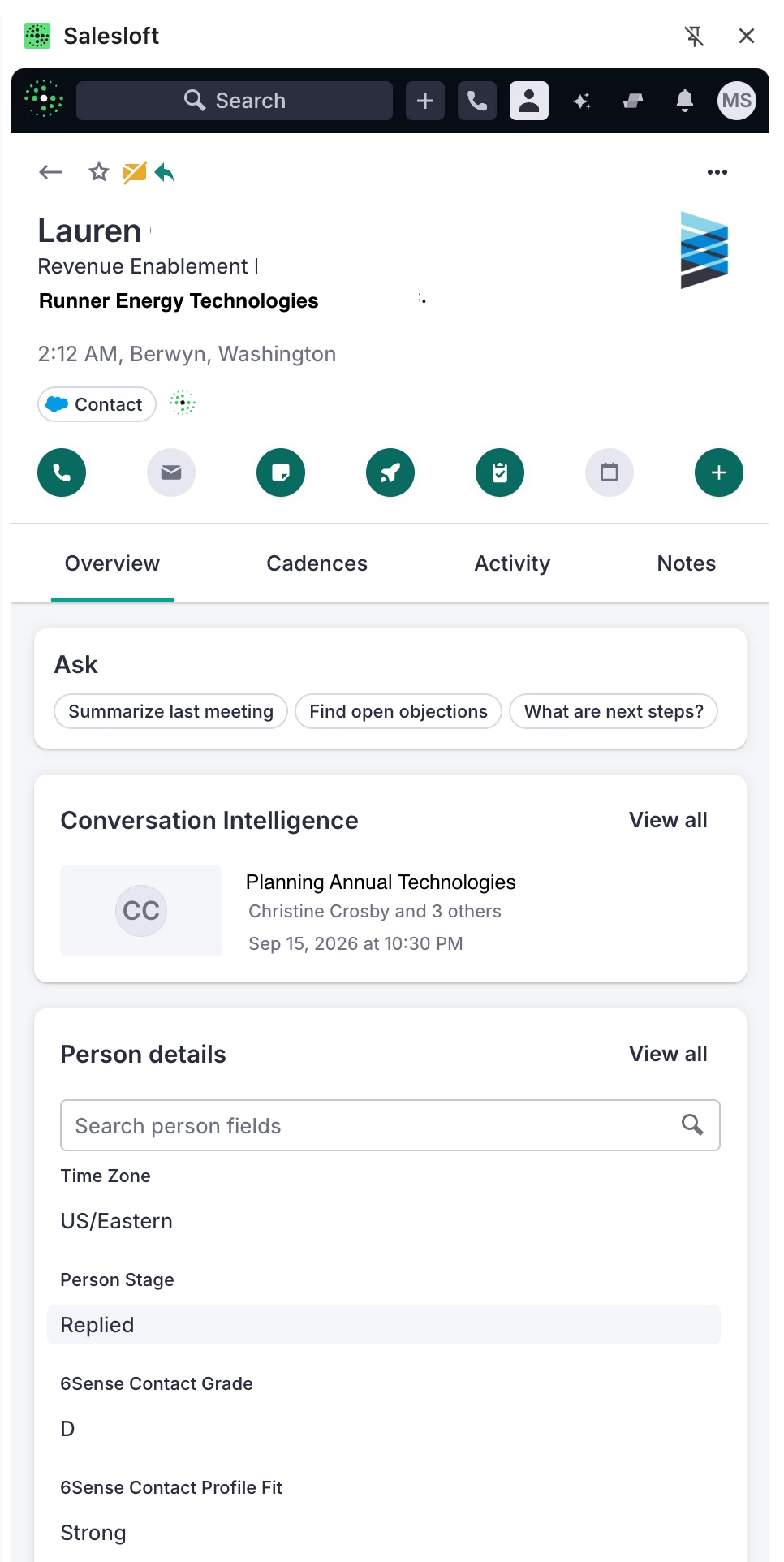
Your Chrome Extension Overview tab includes a Conversation Intelligence card with the most recent call summary for the contact or account you're viewing — no clicks required.
Who: Users who have downloaded the Salesloft Connect Chrome Extension and have an active Conversation Intelligence or (former) Copilot entitlement.
Where: Inside Chrome Extension side panel, Overview tab on Person and Account record views.
How: Open any contact or account record in your Chrome Extension side panel and view the Conversation Intelligence card under the Overview tab. Click "View all" to open your full conversation library filtered to that record. To learn more, see the Salesloft Chrome Extension: Side Panel UI article.
Data & CRM
Person Records: Improve Contact Creation and Deduplication Logic
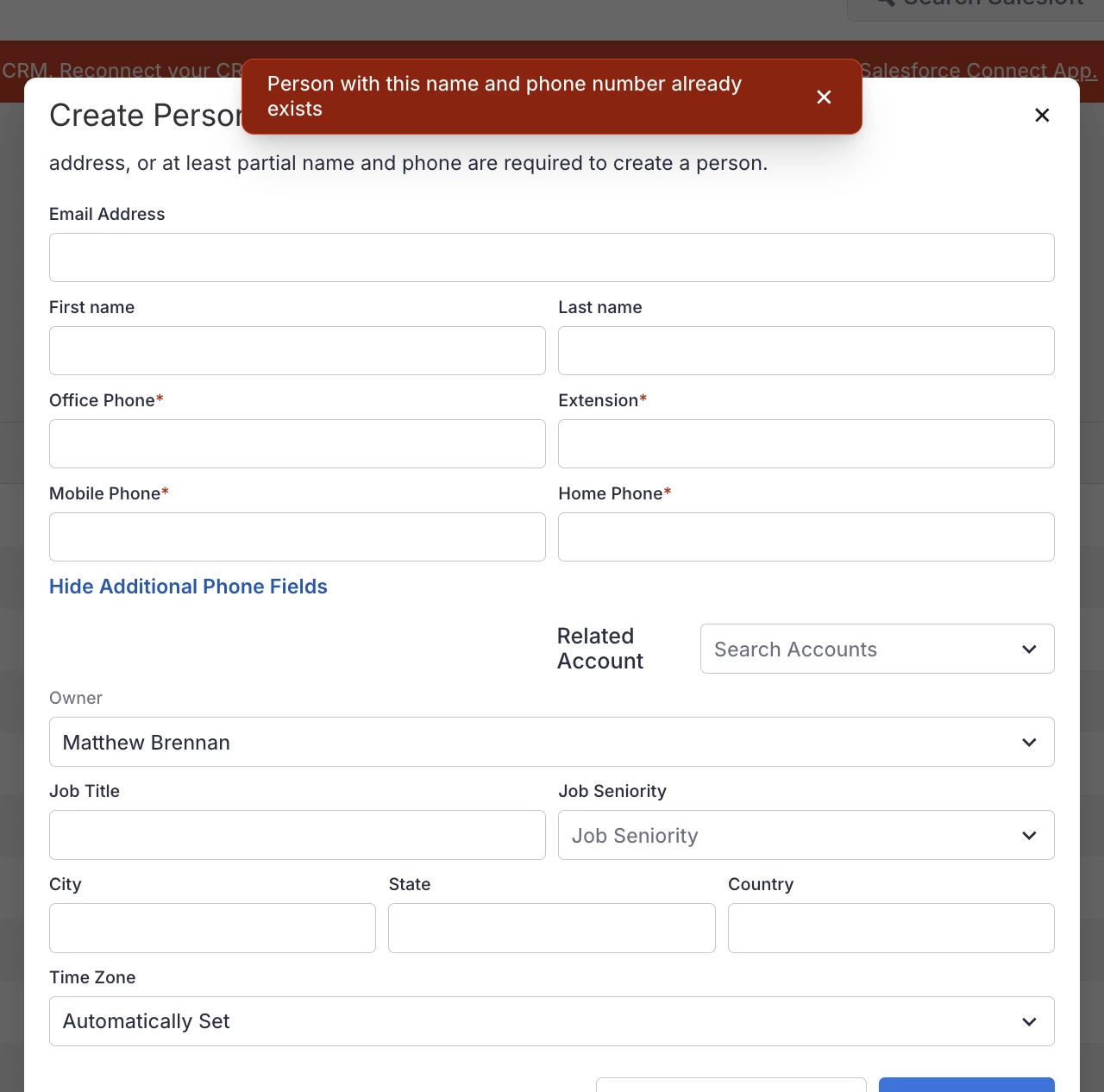
Salesloft protects your records from duplicates when an email address is unavailable, matching on First Name + Last Name + Phone Number as a secondary check.
Who: All users creating person records manually or through CSV import.
Where: Create Person modal and CSV import.
How: No setup needed. If you manually enter a record that matches an existing one, you'll see an inline warning with a link to the existing person instead of creating a duplicate. Matching rows in a CSV import are merged automatically. To learn more, see the Create a Person in Salesloft article.
Product
Updates to Our Support Experience
Support now runs through an AI-powered Support Chat inside Salesloft, Clari, Groove, and the Knowledge Base. If Support Chat can't resolve your issue, it opens a support case on your behalf automatically.
The case form — and, for Salesloft, the support@salesloft.com email address — no longer accepts new submissions
Who: All users. For Clari customers, only Designated Support Contacts (DSCs) can submit a case through Support Chat; other Clari users are directed to a list of their org's DSCs. Salesloft customers can all submit cases through Support Chat.
Where: Support Portal (Salesloft or Clari Knowledge Base), the Salesloft platform, the Clari platform, and Groove.
When: Made generally available on October 1, 2026.
How: Support Chat is now the only way to start a request. Access Support Chat in:
- The Support Portal (chat icon, bottom right corner)
- Salesloft (click your name, then "Ask a question")
- Clari (click the ? icon, then "Get instant help")
- Groove (chat icon, bottom left corner).
Once a case is open, you'll communicate with support through the customer portal or email as before. Clari Designated Support Contacts can still track cases in the Case Dashboard.