


November 2026 Release Notes
See what's new in Salesloft!
Release Date: November 10, 2026
In this article, we will highlight Salesloft's newest features and functionality. New features are releasing in the following product areas:
Conversation Intelligence
RTMS: Zoom Experience
Zoom recording runs through Zoom Real-Time Media Streams (RTMS) instead of a meeting bot. This update streams the meeting to Conversation Intelligence through a Zoom app, so no bot appears in the participant list.
Who: Conversation Intelligence teams and users whose Zoom meetings were previously recorded with the bot. A Zoom admin must approve the Salesloft CI app to receive real-time meeting content.
Where: Zoom Account Settings > Zoom Apps, and Zoom’s Active Apps Notifier during meetings.
How: By default, users who record Zoom meetings with the bot move to RTMS, and no Salesloft-side setup is needed. A Zoom admin turns on Share realtime meeting content with apps under Account Management > Account Settings > Zoom Apps, and can set the Salesloft CI app to start automatically. [CONFIRM: Zoom-side steps are marked “to be modified.”] Your Recorder Settings still decide which meetings are recorded. Zoom shows participants a disclosure message, and anyone in the meeting can pause or stop the app from the Active Apps Notifier. Depending on the host’s Zoom settings, the host may need to approve the app.
To learn more, see the following articles:
- Conversation Intelligence and Zoom Overview
- Configure Zoom RTMS Connection for Your Team
- Record Zoom Meetings with Conversation Intelligence
Zoom App: Live Battlecards
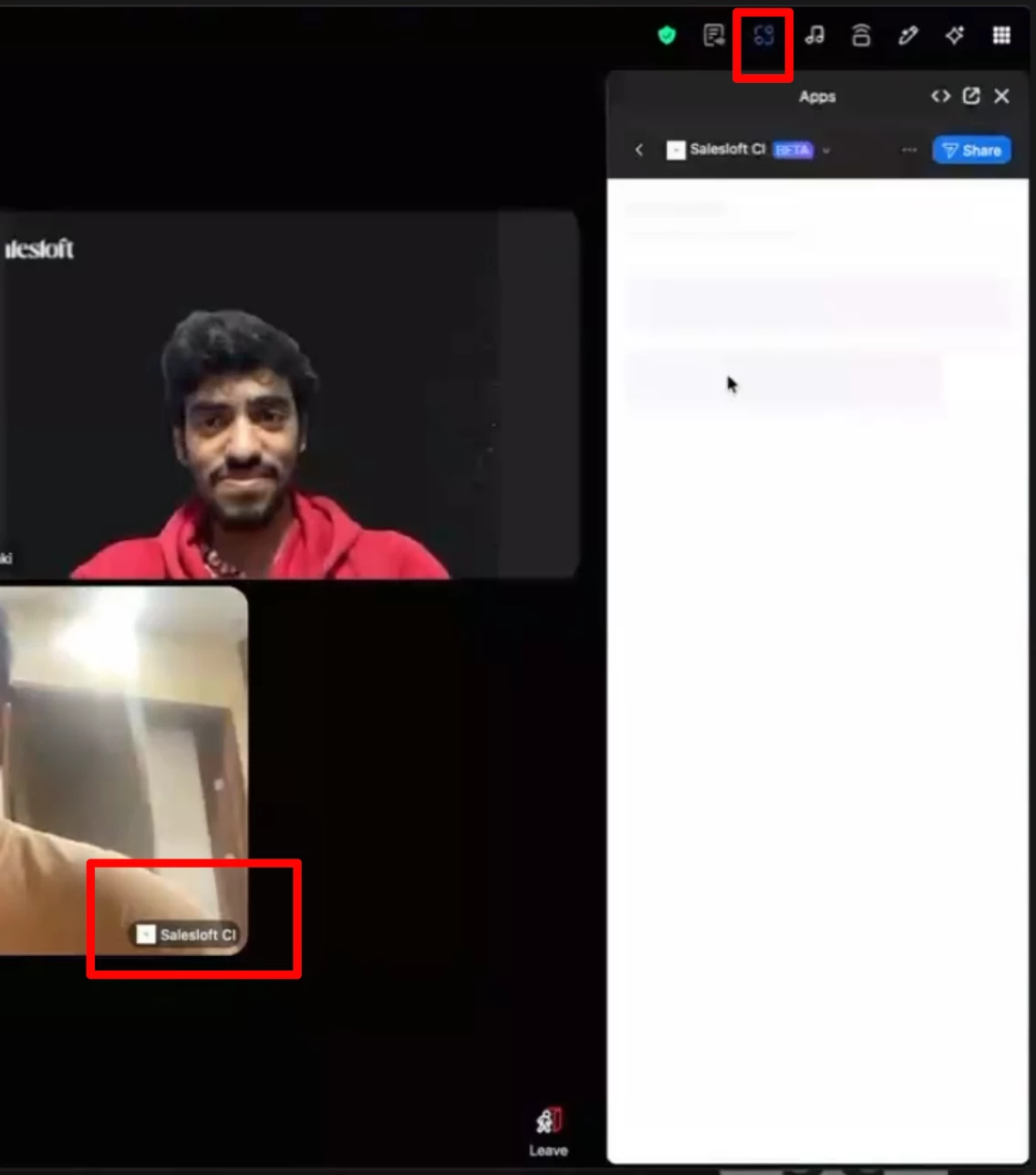
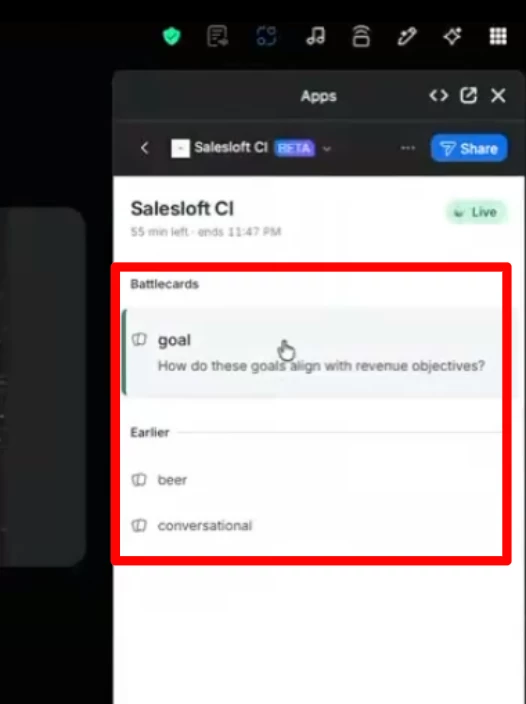
A Salesloft app in Zoom’s side panel displays live battlecards as topics come up in the meeting, along with a meeting countdown. This update removes the need for the Copilot desktop app to use real-time features.
Who: Users whose Zoom meetings are recorded through RTMS with Conversation Intelligence. The Zoom admin must have previously setup RTMS for Zoom.
Where: The Apps control in the Zoom meeting side panel.
How: Open Apps in Zoom and choose Salesloft. The first time, click Connect. When someone mentions a topic your team has a battlecard for, a card appears under Battlecards. Select the card to read it in full, or use Search all battlecards to find any card. The countdown turns amber in the last 5 minutes. To learn more, see the Zoom Meetings with the Salesloft App for Conversation Intelligence article.
Zoom Cloud Recording: Auto-Record
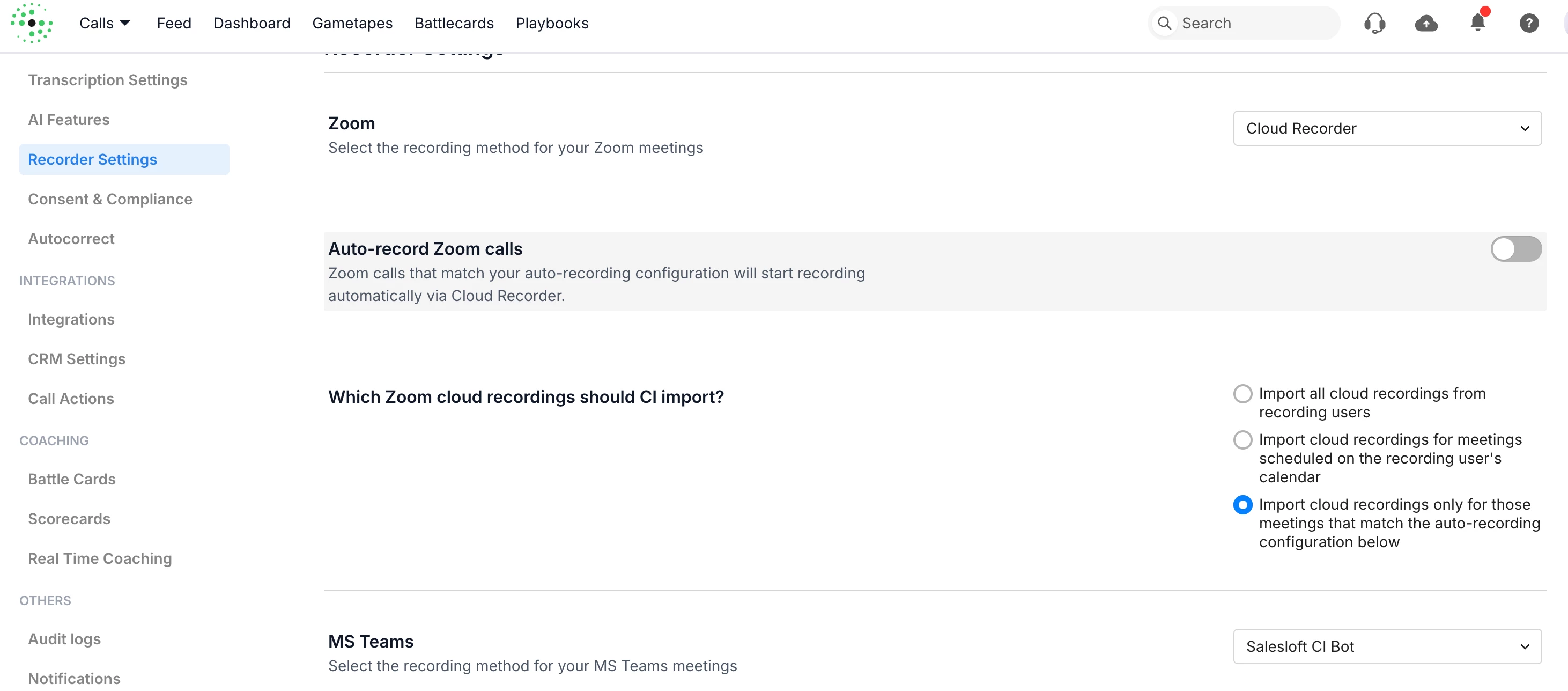
Auto-record starts cloud recording automatically for eligible Zoom calls. This update imports recordings into Conversation Intelligence without the host starting them and without a bot joining.
Who: Teams using Conversation Intelligence. Admins configuring recording settings for Zoom. Requires Zoom Cloud Recorder to be set up, with Zoom connected under Workspace settings > Integrations > Web Conferencing.
Where: Recorder Settings, under Zoom.
How: Confirm the recording method is Cloud Recorder and turn on Auto-record Zoom calls. Choose which recordings to import. If you choose to import only meetings that match your auto-recording configuration, set which meetings qualify. Add any restricted domains or emails, and optionally let users override the default. Calls hosted outside your Zoom account can't be auto-recorded, and a recording can only be stopped from Zoom. To learn more, see the Manage Your Team's Recording Platform with Conversation Intelligence article.
Google Meet Cloud Recorder
Google Meet's own cloud recording captures your calls in place of a meeting bot. This update keeps calls captured, summarized, and searchable even when your organization blocks third-party meeting bots.
Who: For teams using Conversation Intelligence. Admins configure recording settings for Google Meet. Users will connect to Google Meet and run meetings through the Google Meet platform.
Where: Recorder Settings, under the Google Meet recording method.
How: In Recorder Settings, set your Google Meet recording method to Cloud Recorder, which turns off the bot for Google Meet meetings. Turn on Auto-record Google Meet calls if you want calls recorded without the host starting them. Choose which cloud recordings to import, add any restricted domains or emails, and optionally let users override the default for their own meetings. This method has no live transcription or real-time features. Calls take longer to appear because recordings are checked for every 15 minutes, and externally hosted meetings can't be imported. To learn more, see the following articles:
- Configure Google Meet Cloud Recorder Connection for Your Team
- Record Google Meet Meetings with Conversation Intelligence
Enhanced Summary
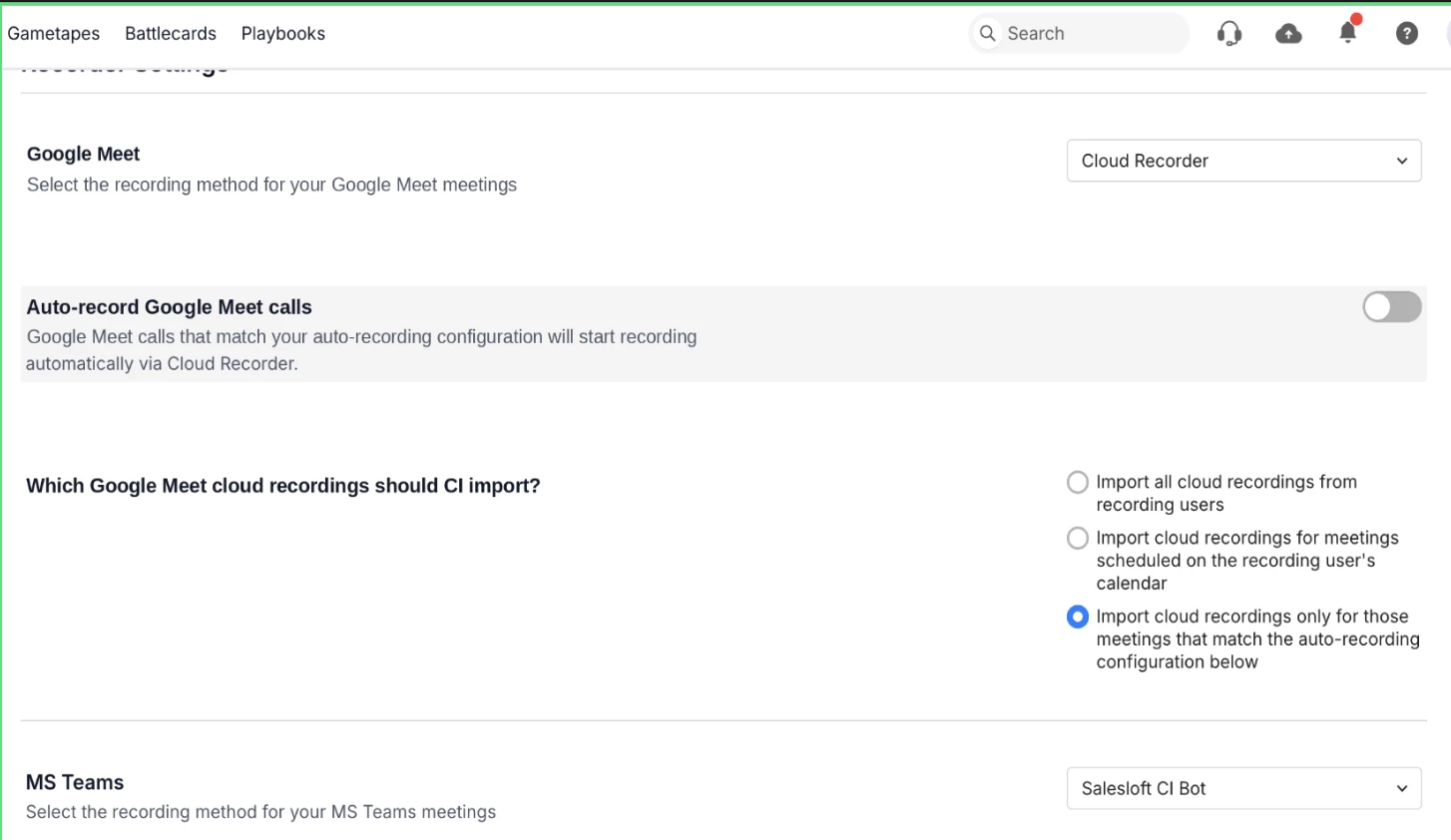
This update lets you select Show more to expand the summary when you need more detail. Call summaries display as a short, scannable list of key discussion points and action items instead of a single paragraph.
Who: Users with access to recorded calls in Conversation Intelligence.
Where: The call summary in the call view of a recorded call in Conversation Intelligence (formerly Copilot).
How: No setup needed. Open a recorded call and review the summary. Select Show more for a fuller summary, and review the action items in the call view. To learn more, see the Access and Find a Call Recording in Conversation Intelligence article.
Sharing Link Expiration
Admins set a maximum number of days that a shared call link stays active. This update keeps every link created afterward within that limit, and you can still choose a shorter expiration for each link.
Who: For teams using Conversation Intelligence. Admins with access to Workspace settings set the maximum. All users who share calls are limited by it.
Where: Workspace settings > Call share settings, and the Share link window on a call.
How: Enter the maximum number of days, up to 5 years. The setting saves automatically. Links created afterward expire within the maximum, and Extended access is turned off. Links created earlier keep their original expiration until you create a new link with Regenerate. To remove the maximum, clear the field and press Enter. To learn more, see the Manage Call Sharing Settings in Conversation Intelligence article.
Call Recording for In Person Meetings
The Conversation Intelligence (formerly Copilot) mobile app records in-person conversations and attaches them to an account and opportunity. This update processes each recording like a virtual call, including transcription, speaker labels, and CRM sync.
Who: All users of the mobile app on iOS and Android. No additional license or setup is required.
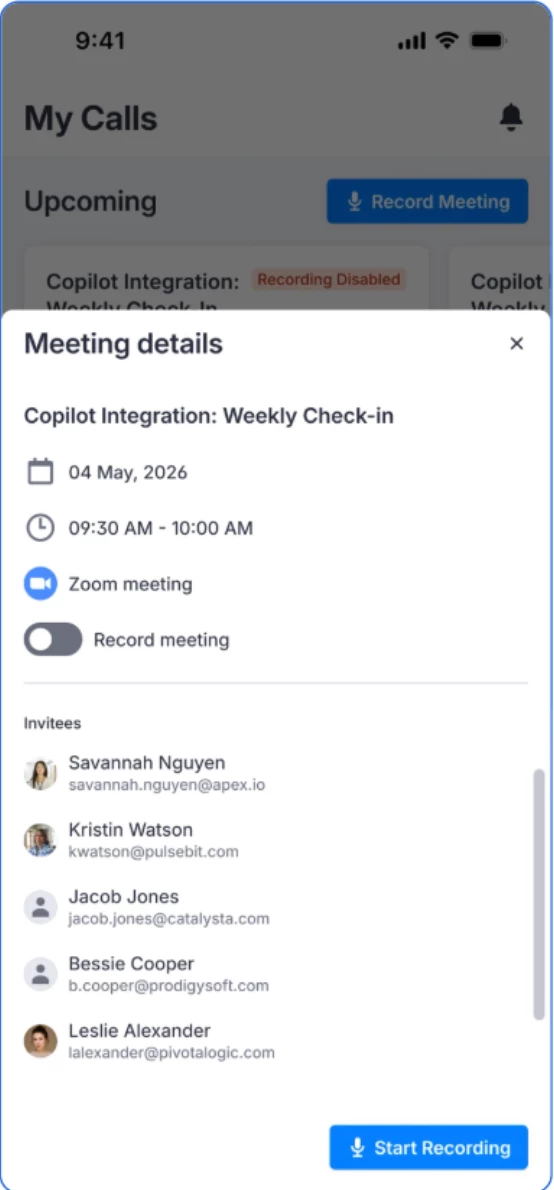
Where: Conversation Intelligence (Copilot) mobile app. Tap Record on a scheduled meeting on the Home screen, or start an ad-hoc recording.
How: Tap Record and confirm that everyone in the meeting has agreed to be recorded. Tap Stop when you finish, then update the meeting title and add CRM contacts. Upload right away or save a draft. Recordings work offline and upload when you reconnect. Set up Voice Print in your profile so the transcript labels each speaker. The AI summary appears in the desktop app. To learn more, see the Record Calls In-Person with the Conversation Intelligence Mobile App article.
Workflow
Manager View in Rhythm
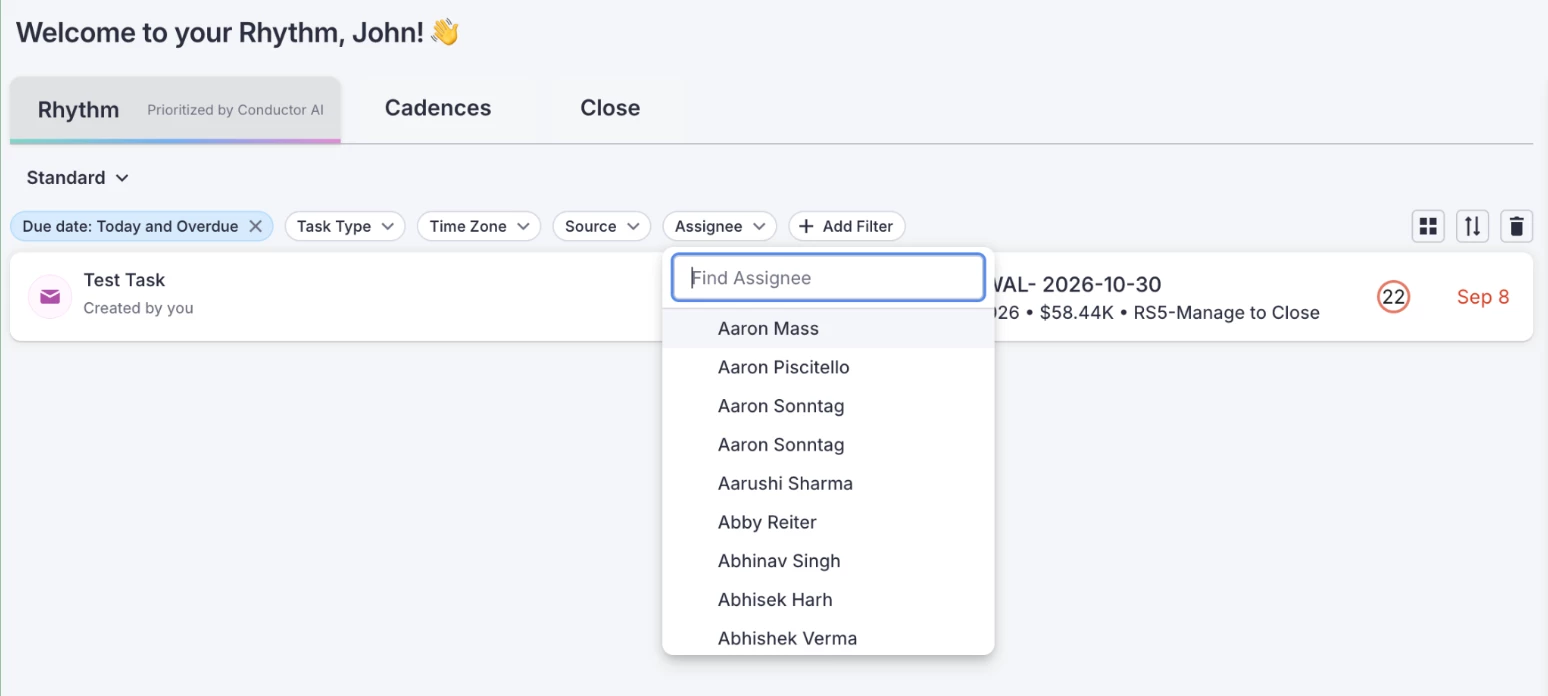
An Assignee filter in Rhythm displays another user's tasks, including cadence tasks. This update lets managers and admins review a team member's work without acting on their behalf.
Who: Managers with direct reports set in the manager field of the Users table, and users with admin-level task permissions. Editing a direct report's tasks requires the Edit Direct Report's Tasks permission.
Where: The filter bar on the Rhythm page and the Rhythm tab in the sidebar.
How: Open Rhythm, click Assignee, and select a user. Admins can search any team member, and managers can select their direct reports. Managers can't run, complete, or skip steps on a report's tasks. To grant the edit permission, open the team's roles settings, create or edit a custom role, select Edit Direct Report's Tasks in the Tasks group, and assign the role. To learn more, see the View and Manage a Team Member’s Task in Rhythm article.
Rhythm Saved Views
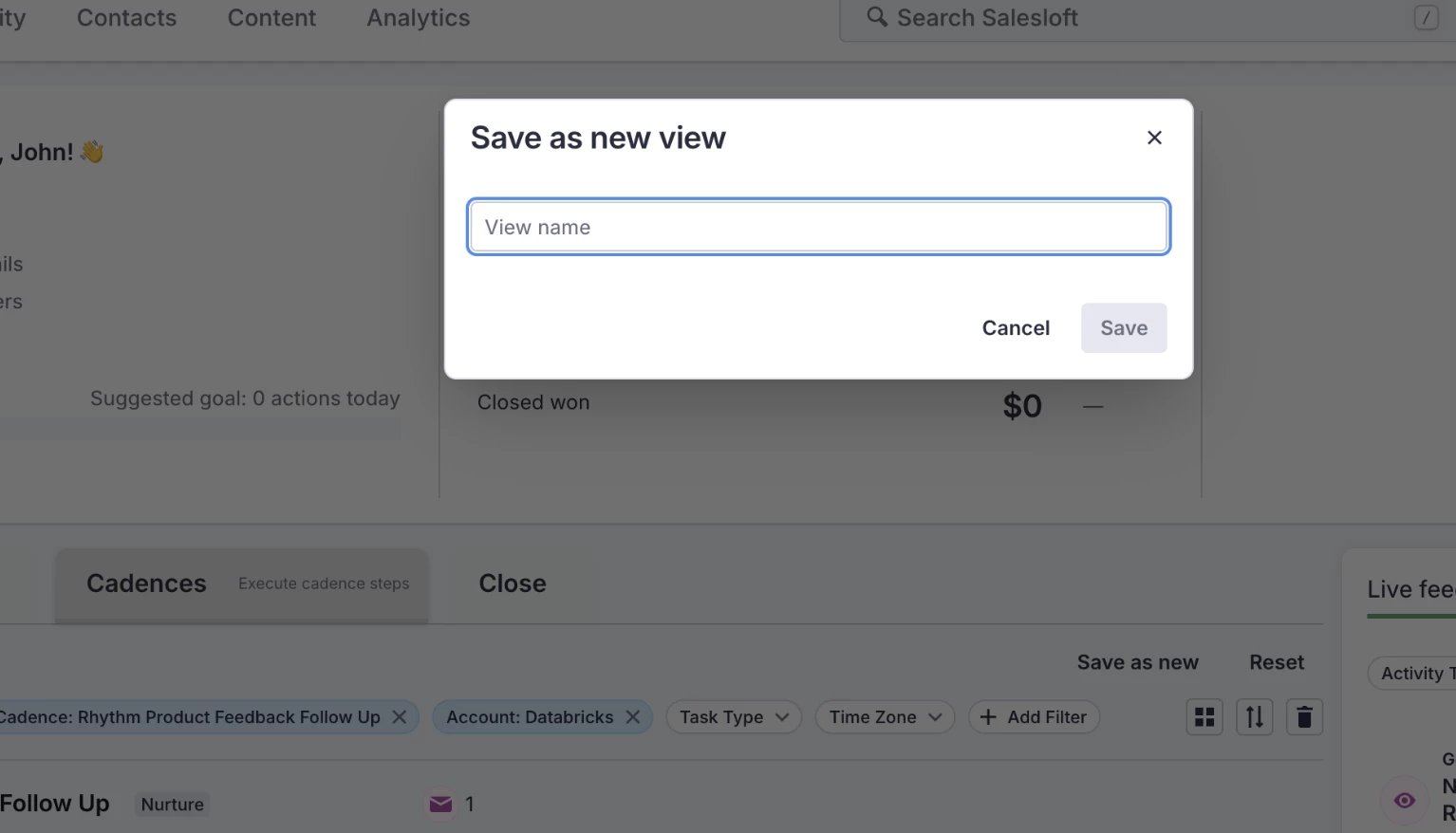
Rhythm saves combinations of filters in Tasks and Cadences as named views. This update lets you switch between views or set one as your default.
Who: All users with access to Tasks or Cadences. No admin setup is required.
Where: The Tasks and Cadences tab, using the view dropdown at the top left. Saved views also sync to the mobile app.
How: Apply your filters and click Save as new. Name the view and click Save. To load a view automatically, click the pin icon next to it. Saved views are private to you. To learn more, see the Saved Views in Salesloft article.
Channels
Multiple Dialer Types
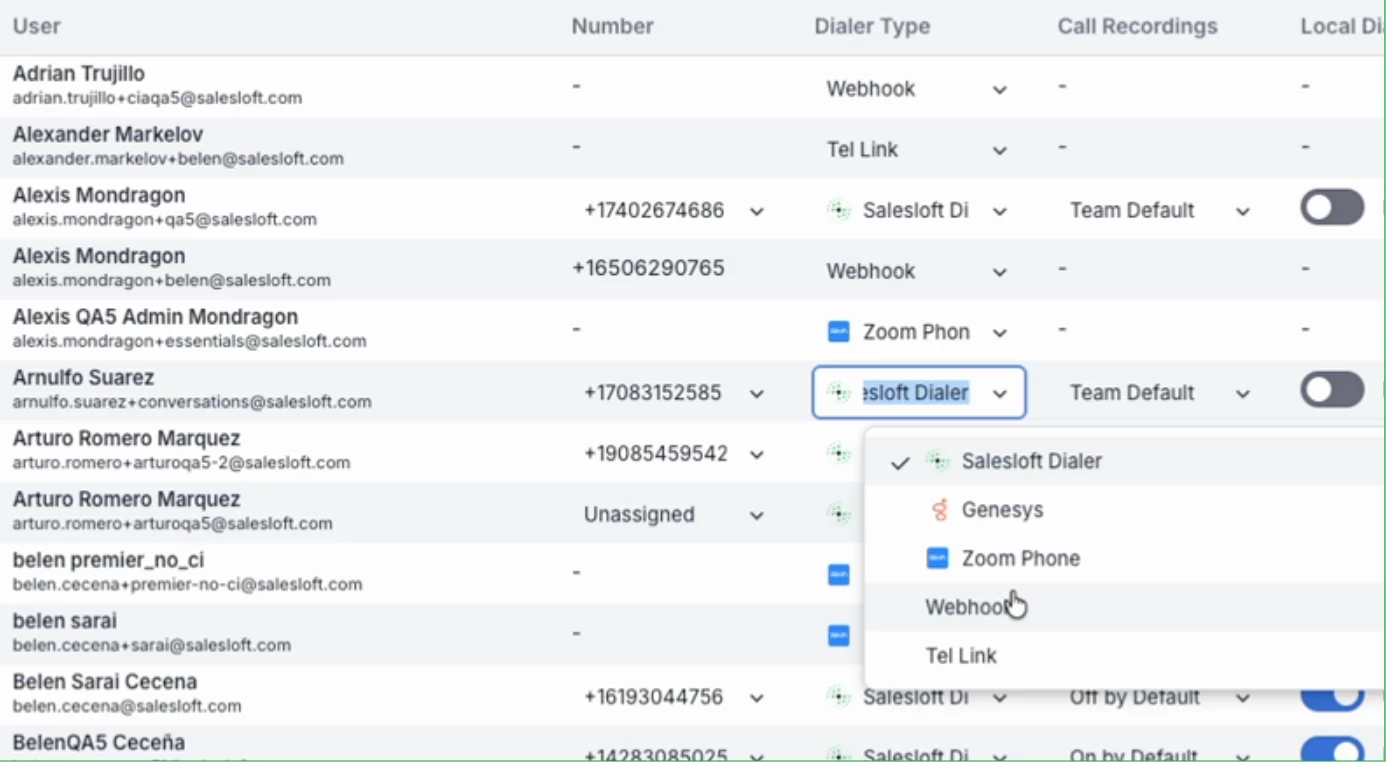
This update lets you pair the Salesloft Dialer with a Salesloft-built integrated dialer, such as Zoom Phone or Genesys, and calls from every dialer appear in Salesloft. Admins can assign a dialer to each user instead of one dialer for the whole account.
Who: Admins with access to Dialer setup.
Where: Dialer Settings and the Manage Users tab. The settings will apply to the Salesloft Dialer.
How: In Dialer setup, set up your integrations and the Salesloft Dialer, then choose the default dialer type for new users. Open Manage Users and select a dialer type for each user. Number, Call Recordings, Local Dial, and SMS settings apply to users on the Salesloft Dialer, and users on third-party dialers show dashes. Each user can have one dialer type at a time. To learn more, see the Set Up Dialer Types for Users article.
Opportunity Dynamic Fields in Email
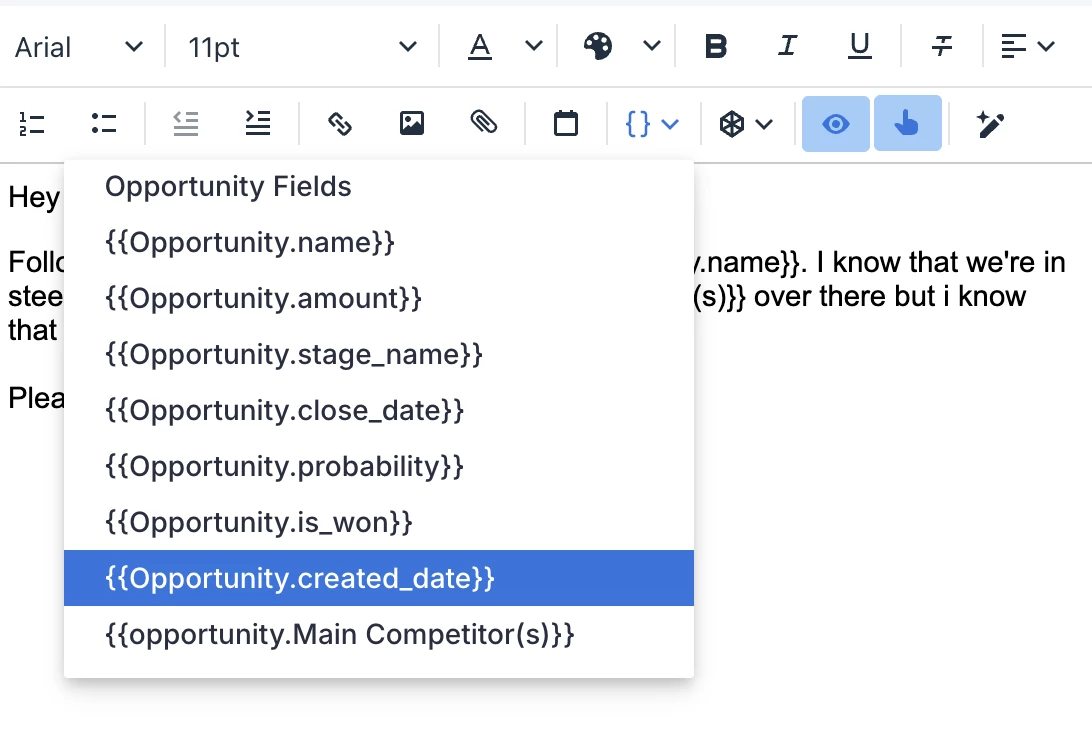
The Dynamic Fields dropdown includes an Opportunity Fields section with merge tags for standard and custom opportunity fields. This update lets you reference deal details in emails and cadence templates without copying them from your CRM.
Who: All users with opportunities synced from a CRM. Custom opportunity fields must be mapped in Salesloft to appear as tags.
Where: The Dynamic Fields dropdown in the email pane, cadence email steps, and templates. The Opportunity Fields section appears between Account Fields and Time Fields.
How: Click Dynamic Fields and select a tag from the Opportunity Fields section. In the email pane, the section appears only when the recipient has an open opportunity. If the recipient is on more than one, you can pick the opportunity. By default, Salesloft uses the open opportunity you own that was updated most recently, or the most recently updated open opportunity if you own none. To learn more, see the Available Dynamic Fields article.
Group Email Booking Routing Enhancement
Calendar invites route to the person who submits the booking form instead of the first recipient on the email thread. This update ensures a colleague or delegate who books from a group email receives the invite on their own calendar.
Who: All users with access to Meetings who share scheduling links with multiple recipients.
Where: The contact information form on the booking page.
How: No setup needed. The form shows editable Name and Email Address fields, and Salesloft creates the event for the email address that is submitted. To learn more, see the Book Meetings in Salesloft article.
Recurring Meeting Improvements
Salesloft automatically updates your recurring meetings in your Activity Feed when you make changes. This update keeps reverted, rescheduled, and deleted occurrences accurate and removes stale cancellation badges.
Who: All users with a Google Calendar or Outlook Calendar connected. Reverting a rescheduled occurrence applies to Google Calendar only.
Where: Salesloft Person and Account Profile Activity Feeds and CRM activity records.
How: No setup needed. When you revert a rescheduled occurrence, Salesloft restores the activity at its original time and removes the "next event cancelled" badge. When you delete one occurrence, Salesloft removes it from the Activity Feed and deletes the matching CRM activity. When you reschedule one, the start time updates on the Activity Feed. Reverting is not supported on Outlook Calendar or for Lofted events. To learn more, see the Logged Activities Inside the Activity Feeds article.
Data & CRM
Custom Objects for Opportunities
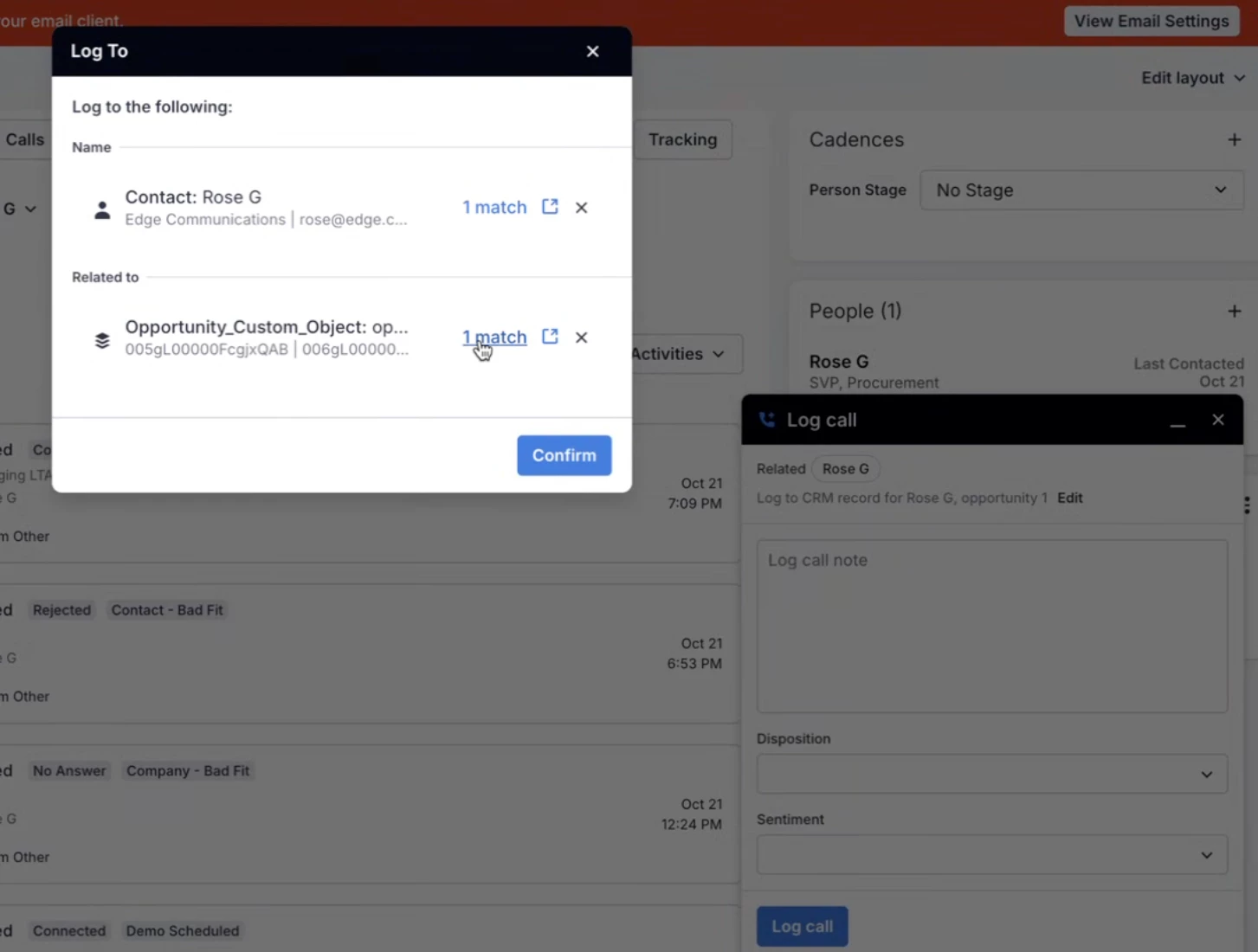
This update lets you log deal activity in Salesloft related to an Opportunity without switching to Salesforce.
Who: Admins configure the object. All users with access can log activity. Requires a Salesforce connection where the syncing Salesforce user has read and edit access to the object and its fields.
Where: Settings > Data > Custom Objects > Import custom objects, and the Related To dropdown when you log activity.
How: Import an Opportunity-related custom object and map its fields on the Field Mapping, Field Layout, and Object Settings tabs. Enable it for CRM Record Selection. Then open Access and Visibility > Custom Object Visibility, click Edit, and make the object available to everyone or to specific groups. Users in an allowed group select the record in the Related To dropdown. To learn more, see the Custom Object Field Configuration article.
Extensions
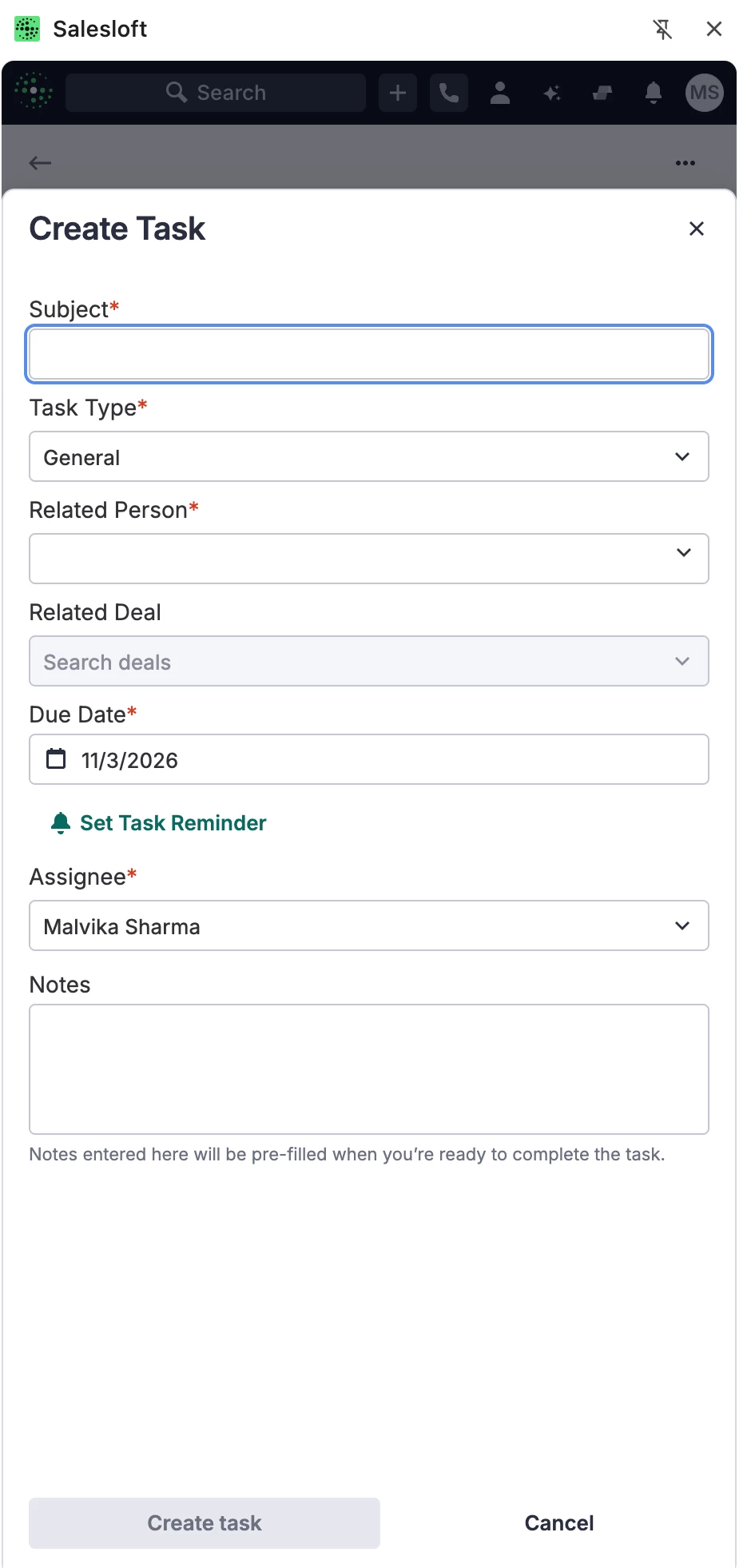
Create Task from the Global Menu
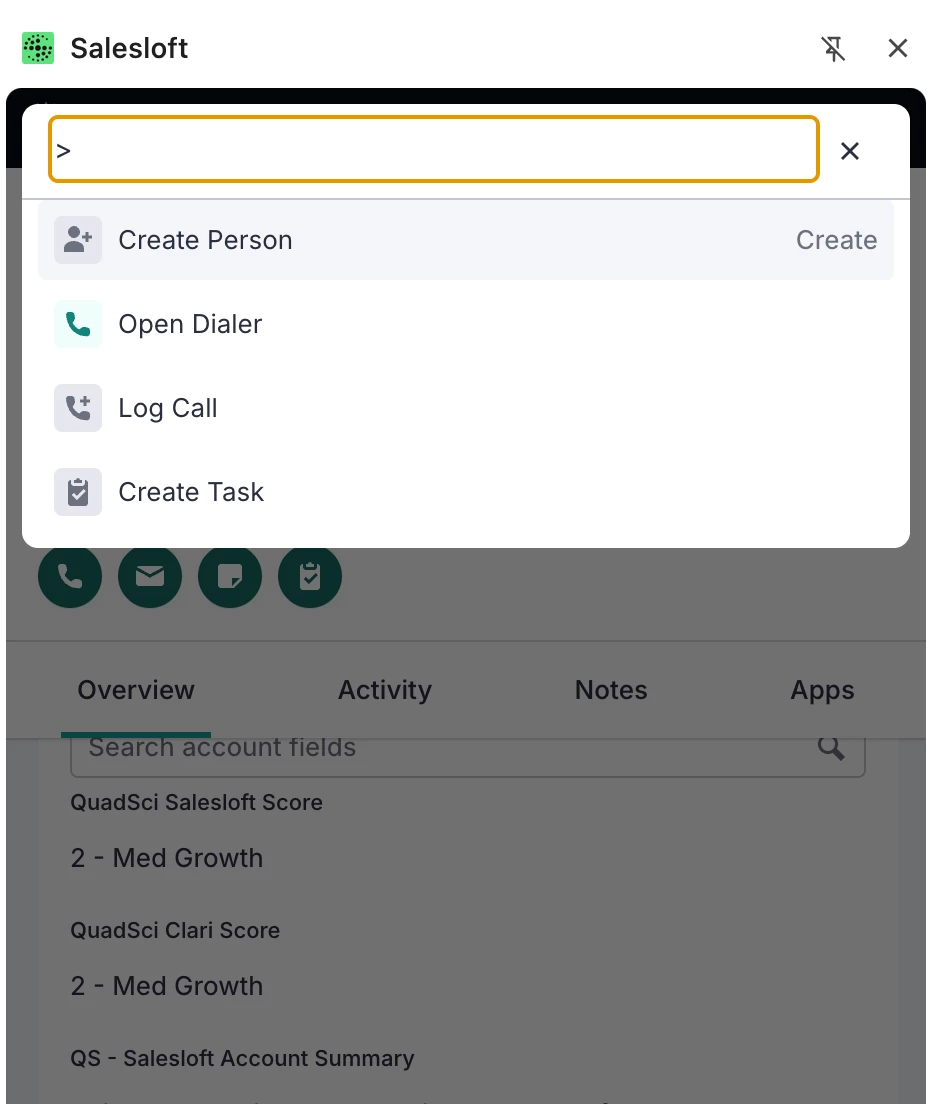
The Salesloft extension's global ">" menu includes a Create Task option that works on any page. This update removes the need to open a Person or Account record first.
Who: Users who have downloaded the Salesloft Connect Chrome Extension with permission to create tasks.
Where: The global ">" menu in the Salesloft extension.
How: No setup needed. Open the ">" menu, select Create Task, complete the Create Task form, and save. The task appears in Workflow > Rhythm in the extension and the web app. To learn more, see the Create Tasks in Salesloft article.
Log Call from the Global Menu
The global ">" menu in the Salesloft Chrome extension includes a Log Call option that works on any page. This update lets you choose the person inside the Log Call form instead of opening their record first.
Who: Users who have downloaded the Salesloft Connect Chrome Extension with call logging enabled.
Where: The global ">" menu in the Salesloft Chrome extension.
How: No setup needed. Open the ">" menu and select Log Call. Click Add to select the person, enter the disposition, sentiment, and notes, and save. The call appears in the person's activity feed. To learn more, see the Log a Call article.
Opportunity Views in Extensions
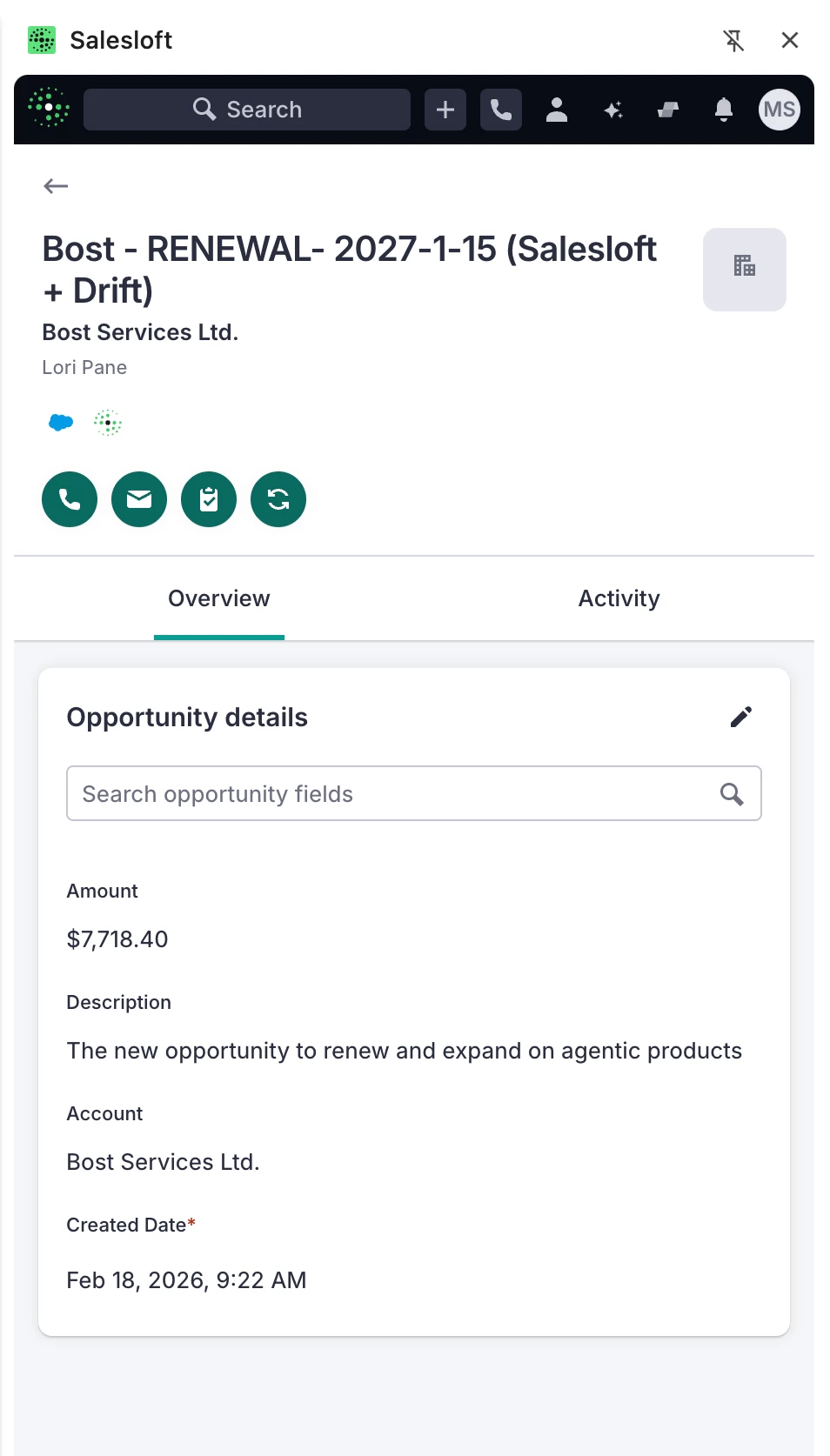
An Opportunity view in the Salesloft Chrome extension and Outlook add-in displays an opportunity's key details in one place. This update lets you review and edit deal information without leaving your inbox or browser.
Who: Users on teams connected to Salesforce with Deals enabled that have downloaded the Salesloft Chrome Extension or the Connect for Outlook add-in.
Where: Person and Account records in the Chrome extension and Outlook add-in.
How: Open a Person or Account record and select a related opportunity. In the Overview tab, search for a field and edit it inline to save it back to the CRM. Use the Email quick action, or Call in Chrome, to reach the deal's contacts. In Outlook, the Notes tab shows all notes for the deal. To learn more, see the Salesloft Chrome Extension: Side Panel UI article.
LinkedIn Sales Navigator in Extensions
An Apps tab in the Salesloft Chrome extension and Outlook add-in displays LinkedIn Sales Navigator for the person or account you're viewing. This update uses your existing LinkedIn sign-in.
Who: Teams with the LinkedIn Sales Navigator integration set up in Salesloft. Users that have downloaded the Salesloft Chrome Extension or the Connect for Outlook add-in and have their own LinkedIn Sales Navigator access.
Where: The Apps tab on Person and Account records in the Chrome extension. In the Outlook add-in, it also appears on Opportunity records.
How: Open a record and select the Apps tab. In Outlook, the tab follows the sender or recipient of the selected email. You can't mark LinkedIn tasks complete from the Apps tab. To learn more, see the LinkedIn Sales Navigator in the Extensions article.
Salesloft Support
One Help Center for Salesloft and Clari
Salesloft and Clari articles live in one Help Center at help.salesloft.com as of November 2, 2026. This update opens Clari and Clari Copilot articles to everyone without a login.
Who: All users.
Where: help.salesloft.com.
How: You can share article links with colleagues, customers, and prospects. Your existing Salesloft links keep working, so you don't need to update them. You submit support cases the same way you do today. To learn more, see the help.salesloft.com today!