


New Member
September 3, 2026
Question

Automation Rules Based on Opportunity

  • September 3, 2026
  • 1 reply
  • 36 views

HI! So my team is trying to set an automation rule based on opportunity stages. The problem we are encountering is that our company offers different products and we want to trigger this automation rule based on a a specific product. 

I looked at the dropdown options for the opportunity triggers and they are very limited. 
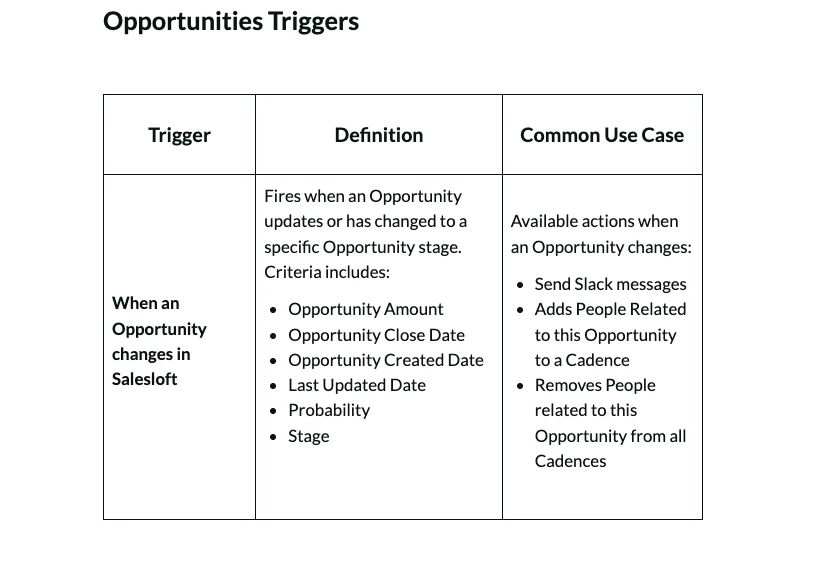


Is it possible to add custom opportunity field triggers into that dropdown? 

For example: Opportunity Stage changes to Closed won AND Opportunity Product = X? 


1 reply

SWaldman
Regular Contributor
September 4, 2026

@JessicaIllescas 
 

Currently, it’s not possible to add custom Salesforce Opportunity fields directly into the standard Automation Rules trigger dropdown in Salesloft.

Natively, Salesloft's real-time Automation Rules are designed to trigger off of People (Leads/Contacts), Accounts, and Activity objects. Because the automation engine evaluates criteria at the individual contact or account level, opportunity-level trigger options are extremely limited.

Fortunately, there are two highly effective best-practice workarounds to achieve your goal of triggering actions based on opportunity stages and specific products:

Option 1: The Scheduled Import Method (Recommended for Auto-Cadence Enrollment)

If your goal is to automatically enroll contacts into a cadence when their opportunity hits a certain stage and matches a specific product, Scheduled Imports are the perfect solution.

Unlike real-time automation rules, Scheduled Imports allow you to leverage the full, unrestricted filtering power of Salesforce reporting.

  1. Create a Salesforce Report: Build a contact report in Salesforce (e.g., Contacts with Opportunities). Filter this report to only show contacts where the Opportunity Stage matches your target stage and your custom Product Field matches the specific product.
  2. Set up a Scheduled Import in Salesloft: Navigate to Settings > Scheduled Imports.
  3. Map and Schedule: Link the import to your newly created Salesforce report. You can set the polling frequency to pull new records every hour, day, or week.
  4. Auto-Enroll: In the Scheduled Import settings, configure Salesloft to automatically import these contacts and place them directly into your designated product-specific cadence.

While this runs on a recurring schedule rather than firing instantly, it gives you complete flexibility to filter by any custom opportunity field in your CRM.
*Important note that Scheduled Imports will continue to read all names on the report, so you would want to add a filter to remove people once they’ve been added to a cadence (eg Contact Status Change or using Salesloft Most Recent Cadence Name field)

Option 2: The No-Code Plays Method (Recommended for Rep Rhythm Tasks)

If you do not need automated background email cadences, but instead want to alert your reps and automatically place a prioritized task in their Rhythm dashboard when a specific product's opportunity stage changes, you should use Plays.

  • No-Code Opportunity Signals: Salesloft's Plays engine allows admins to build no-code workflows triggered by opportunity updates. Unlike standard automation rules, Plays natively support filtering by custom Salesforce objects and opportunity custom fields without requiring complex API configurations.
  • How it works: You can build a Play with the signal "Opportunity Stage Updated." Under the criteria, you can add a filter for your custom Product Field (e.g., where Product equals [Specific Product]). When the criteria are met, the Play automatically drops a prioritized action directly into the assigned rep's daily Rhythm queue.