


Migrating From Groove to Salesloft Guide
Groove to Salesloft Migration Guide
This article outlines everything you need to know about migrating from Groove to Salesloft, what to expect during the transition, and how to get started.
- Groove Migration FAQ
- Why Migrate from Groove to Salesloft?
- Overview of Migration Tool & Project
- Product Differences - Terminology, Architecture, and Features
Groove Migration FAQ
How do I start the migration process? Reach out to your Clari/Salesloft Account Manager or Customer Success Manager to express your interest. They will open a dedicated migration request and schedule a discovery call to discuss your timeline, requirements, and next steps.
Is there a cost to migrate? No. This migration service is available to current Clari Groove customers for $0.
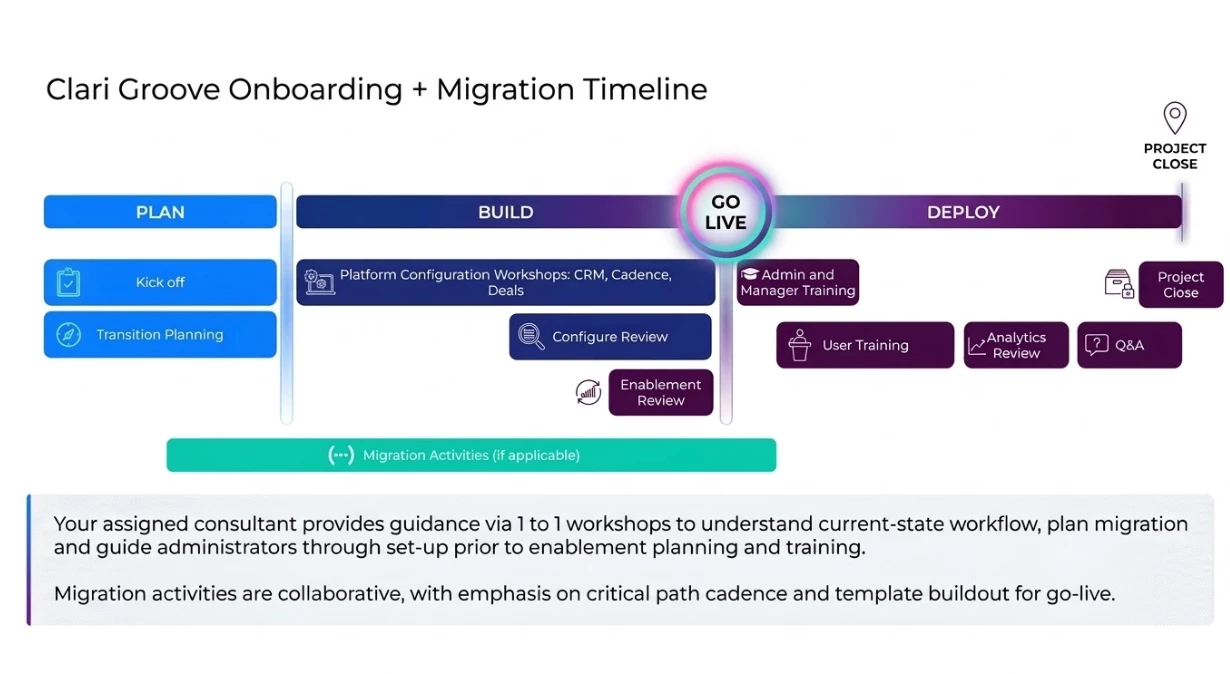
How long is the typical migration process and project? We have various onboarding packages suited to customers of all sizes, ranging from 6 weeks to 16 weeks, or longer for larger, more complex teams. Please work with your Account Manager for scoping. While timelines may vary, all projects follow our standard three-phased methodology:
- Plan (~2 Weeks): Kickoff, workflow discovery, and pre-configuration.
- Configure & Migrate (~3 Weeks): Instance setup, content migration, and phone porting.
- Deploy (~3 or more Weeks): Training, analytics review, and Go-Live support.
Is there downtime for users? The migration is designed to be a quick transition with minimal user disruption:
- Content: Content migration is designed for zero downtime. To ensure a clean transfer, we recommend a two-week content freeze in Groove prior to your go-live date. This prevents data discrepancies and ensures your entire library is captured in a single, seamless sync.
- Dialer/SMS: Phone number porting typically involves a brief downtime window (about 1-2 business days for US numbers). Please note that International Numbers/SMS can take up to 7 days to become fully active due to mobile carrier registration SLAs.
Can we keep Groove and Salesloft active at the same time? Yes, you have two primary options for your transition. The choice depends on whether you prioritize user ramp-up flexibility or data cleanliness. Your Onboarding Consultant will work with you to help determine the best option for your team.
- Option 1: The 14-Day Parallel Run [Recommended] - Users maintain access to both platforms for ~ two weeks.
- Benefits
- Reps finish existing Flows in Groove while starting new Cadences in Salesloft, preventing a prospecting gap.
- Users have a buffer period to finish or manually move one-off tasks due in the future
- Key Considerations
- During the transition, having activity logging enabled in both systems will result in duplicate task/event creation. While one-off activity logging can be disabled in Groove, flow email logging cannot be disabled. Since Salesloft logs all emails (both one-off and flow), we recommend completing the steps below to prevent duplicate activities from being created during the transition period.
- Step 1: Disable Groove Activity Logging in Bulk - Contact Clari Groove Support to disable activity logging across your organization in bulk. This prevents most Groove activities from writing to Salesforce during the transition.
- Step 2: Have users remove the Groove extension or Outlook Add-in. For larger teams, we recommend having your IT department handle this via a bulk uninstall.
- Step 3: Create a Validation Rule to Block Remaining Flow Activities.
- In Salesforce, go to Setup → Object Manager → Task → Validation Rules → New.
- Configure the rule with the following settings:
- Name: Block Groove Activity
- Active: True Error Condition
- Formula: AND( ISNEW(), groove_sent_from_flow__c = True )
- Error Message: Activity logging has transitioned from Groove to Salesloft. Please ensure all activities are tracked in Salesloft going forward. Click Save.
- Step 4: Remove the Validation Rule After Groove Is Deactivated - Once Groove has been fully deactivated for your users, delete this validation rule to keep your Salesforce org clean.
- During the transition, having activity logging enabled in both systems will result in duplicate task/event creation. While one-off activity logging can be disabled in Groove, flow email logging cannot be disabled. Since Salesloft logs all emails (both one-off and flow), we recommend completing the steps below to prevent duplicate activities from being created during the transition period.
- Benefits
- Option 2: Hard Cutover - In this approach, access to Groove is deactivated on a specific Go-Live date, moving all user activity immediately into Salesloft.
- Benefit
- Eliminates ambiguity regarding which tool to use, providing a clear "start date" that drives full team alignment on the new platform.
- Key Considerations
- During the migration, any contacts currently mid-flow in Groove will not automatically transfer to Salesloft Cadences. There is no bulk migration path for in-progress Flow members, re-enrolling them will require a manual import via Salesforce report or CSV upload.
- To minimize disruption, we recommend stopping all new Groove Flow enrollments for a time period before your migration date. This gives active contacts enough time to complete their current flows, reducing the number of mid-flow contacts that would otherwise need to be manually re-added after the migration.
- Benefit
Can we roll out Salesloft to users in phases rather than all at once? Yes, a phased user rollout is a supported and often recommended approach, particularly for larger teams. Rather than moving your entire organization on a single go-live date, you can migrate users in cohorts. For example, by team, region, or business unit. Your Onboarding Consultant will help you sequence cohorts in a way that minimizes disruption and allows early adopters to serve as internal champions for later groups.
How does a phased rollout affect the content freeze? The two-week content freeze should be aligned with your final cohort’s go-live date rather than the first. This ensures the final sync captures all active content and updates from users across every phase of your rollout.
What happens to users who are still in Groove while others are already live in Salesloft? During the transition window, users on different platforms will operate independently — activity from Groove users logs to Salesforce via Groove, and activity from Salesloft users logs via Salesloft. To prevent duplicate activity logging for any users who have access to both tools simultaneously, follow the steps outlined in the Parallel Run option above.
How does phone number porting work across a phased rollout? Phone numbers can be ported in waves rather than all at once to align with your rollout. Your Salesloft Consultant will work with you to determine which numbers fall into each wave based on your cohort schedule. Note that the standard 4-week lead time still applies, so we will plan these waves early to ensure each group has full dialer functionality by their specific go-live date.
Why Migrate from Groove to Salesloft?
Consolidating on Salesloft moves your team away from fragmented tools and gives you an integrated, scalable, and AI-ready foundation for the future. By moving to Salesloft, you benefit from:
- Advanced Architecture & Connectivity: Salesloft is an API-first platform built for seamless integrations, unified workflows, and better data visibility across your revenue tools.
- Robust Partner & AI Ecosystem: Access to a vast partner network and ability to leverage these integrated partners along with third-party data helps us power AI insights and autonomous agents, allowing your team to work smarter.
- Market Leadership: You are moving to a stable, best-in-class platform recognized as a Forrester Wave Leader and G2 Enterprise Category Leader.
Overview of Migration Tool & Project
Moving from Groove to Salesloft is designed to be streamlined. We combine the speed of our Migrator App with the strategic guidance of a dedicated Onboarding Consultant to ensure your transition is minimal work for your team.
1. What the Migrator App Handles & Your Migration Options
Our Migration Tool does the heavy lifting by automatically transferring your core Groove content, user structures, and permissions directly into your Salesloft instance.
Templates & Flows Migration Options
The migration tool supports two distinct options for transferring your Groove Templates and Flows:
-
Time-Bounded Migration: Transfers all active content based on a defined activity window (e.g., used within the last X months). While the default is set to one year, you will work with your Onboarding Consultant to define your specific timeframe.
-
Targeted Migration: Transfers only the specific assets that you manually label with
Salesloft Migrationwithin Groove.
What is included in the Templates & Flows transfer:
-
Flow Structure: All steps, timing/cadence days, and linked files.
-
Dynamic Content: Supported account, person (lead or contact), and user merge fields and attachments.
-
Ownership & Access: Content (Templates/Cadence) ownership is preserved, and Team-to-Group access is maintained for Groove Master Flows shared with teams.
User, Roles, & Teams Mapping (Automated)
To ensure content is assigned to the correct users and groups, the tool automatically migrates data based on the following:
-
Users (Groove Users → Salesloft Users): All active Groove users will be fully migrated to Salesloft.
-
Role Mapping (Groove Roles → Salesloft Roles): Users will be assigned to a standard or custom Salesloft role that aligns with their current Groove tier (Admin, Team Lead, Analyst, or Standard User).
-
Team Structure (Groove Teams → Salesloft Groups): Groove Teams will transition into Salesloft Groups. Because Salesloft users can only belong to a single group, your Salesloft Consultant will partner with you to rebuild your teams into a group hierarchy.
2. Manual Configuration & Expert Support
While the migration tool handles the content, your dedicated Onboarding Consultant partners with your Admins to finalize your environment. How we support your team:
- Content Optimization: We work together to configure your team access controls and content ownership. This ensures all merge fields are updated and your Salesloft instance is clean from the start.
- Admin Foundations: We provide step-by-step guidance for configuring group hierarchies, role permissions, cadence and task workflows, AI agents, email, dialer/porting numbers, and meeting settings. See: Manage Groups and Hierarchy | Roles and Permissions | Manage Meetings
- Ecosystem Integrations: Our team will advise on connecting your essential integrations directly into your Salesloft workflow to ensure a unified seller experience. See: Salesloft Integrations
- Sync & Automation Logic: We provide guidance on mapping Salesforce fields, rebuilding automation rules, and aligning sync logic to mirror or improve your current workflows. See: CRM Field Configuration Overview | Manage Automation Rules
3. Technical & CRM Readiness
To ensure a secure and high-performing integration, your Onboarding Consultant will walk your IT and CRM Admins through the following essential requirements:
- Email: Setting up a Custom Tracking Domain for click tracking.
- Salesforce:
- Establishing the Salesloft Integration User within Salesforce for secure data flow.
- Installing the Salesloft Connected App
- (Optional) Installing the Insights from Salesloft managed reporting package to unlock deep visibility into team performance.
Moving from Groove to Salesloft is designed to be streamlined. We combine the speed of our Migrator App with the strategic guidance of a dedicated Onboarding Consultant to ensure your transition is minimal work for your team.
1. What the Migrator App Handles & Your Migration Options
Our Migration Tool does the heavy lifting by automatically transferring your core Groove content, user structures, and permissions directly into your Salesloft instance.
Templates & Flows Migration Options
The migration tool supports two distinct options for transferring your Groove Templates and Flows:
-
Time-Bounded Migration: Transfers all active content based on a defined activity window (e.g., used within the last X months). While the default is set to one year, you will work with your Onboarding Consultant to define your specific timeframe.
-
Targeted Migration: Transfers only the specific assets that you manually label with
Salesloft Migrationwithin Groove.
What is included in the Templates & Flows transfer:
-
Flow Structure: All steps, timing/cadence days, and linked files.
-
Dynamic Content: Supported account, person (lead or contact), and user merge fields and attachments.
-
Ownership & Access: Content (Templates/Cadence) ownership is preserved, and Team-to-Group access is maintained for Groove Master Flows shared with teams.
User, Roles, & Teams Mapping (Automated)
To ensure content is assigned to the correct users and groups, the tool automatically migrates data based on the following:
-
Users (Groove Users → Salesloft Users): All active Groove users will be fully migrated to Salesloft.
-
Role Mapping (Groove Roles → Salesloft Roles): Users will be assigned to a standard or custom Salesloft role that aligns with their current Groove tier (Admin, Team Lead, Analyst, or Standard User).
-
Team Structure (Groove Teams → Salesloft Groups): Groove Teams will transition into Salesloft Groups. Because Salesloft users can only belong to a single group, your Salesloft Consultant will partner with you to rebuild your teams into a group hierarchy.
2. Manual Configuration & Expert Support
While the migration tool handles the content, your dedicated Onboarding Consultant partners with your Admins to finalize your environment. How we support your team:
- Content Optimization: We work together to configure your team access controls and content ownership. This ensures all merge fields are updated and your Salesloft instance is clean from the start.
- Admin Foundations: We provide step-by-step guidance for configuring group hierarchies, role permissions, cadence and task workflows, AI agents, email, dialer/porting numbers, and meeting settings. See: Manage Groups and Hierarchy | Roles and Permissions | Manage Meetings
- Ecosystem Integrations: Our team will advise on connecting your essential integrations directly into your Salesloft workflow to ensure a unified seller experience. See: Salesloft Integrations
- Sync & Automation Logic: We provide guidance on mapping Salesforce fields, rebuilding automation rules, and aligning sync logic to mirror or improve your current workflows. See: CRM Field Configuration Overview | Manage Automation Rules
3. Technical & CRM Readiness
To ensure a secure and high-performing integration, your Onboarding Consultant will walk your IT and CRM Admins through the following essential requirements:
- Email: Setting up a Custom Tracking Domain for click tracking.
- Salesforce:
- Establishing the Salesloft Integration User within Salesforce for secure data flow.
- Installing the Salesloft Connected App
- (Optional) Installing the Insights from Salesloft managed reporting package to unlock deep visibility into team performance.
Product Differences - Terminology, Architecture, and Features
Terminology
As you move into Salesloft, some of the terminology will change. Here is a quick translation guide:
- Groove Flow → Salesloft Cadence
- Groove Teams → Salesloft Groups
- Groove Permissions → Salesloft Roles
- Groove Templates → Salesloft Snippets / Templates
- Groove Automated Actions → Salesloft Automation Rules
- Groove Flow Automated Actions → Salesloft Cadence Settings / Automation Rules / Plays
- Groove Auto Import → Salesloft Automation Rules / Scheduled Imports
Architecture
While Groove operates natively within Salesforce, Salesloft utilizes an API-first, Unified Data Model. This architectural shift provides a "single-pane-of-glass" experience by syncing bi-directionally with your CRM (Salesforce, Dynamics, or HubSpot).
This model ensures a single source of truth across your entire tech stack, allowing Salesloft to integrate seamlessly with other enterprise applications and enable sophisticated, cross-platform data sharing that goes beyond the limits of a CRM.
Product Feature Differences
As we bring Salesloft and Groove together, we are taking a targeted approach to enhancing Salesloft's capabilities to match and exceed the workflows you rely on today.
Google Extension & Microsoft Add-in Experience
| Feature | How it works in Groove Today | How it works in Salesloft Today |
| Viewing Salesforce Records & Views | View and update lead, contact, account, and opportunity records directly from Groove Omnibar. | Manage and update Person records through the Salesloft Connect. With a single click, navigate to associated Salesforce Accounts or Opportunities from the person's view. See: Salesloft Connect for Salesforce We are actively working to include both account and opportunity views in Salesloft Connect. |
| Team/Group- Based Views | Groove Views control what data is displayed in Groove's Omnibar when users open an email, calendar event, flow/Omniaction, page in Salesforce, etc. You can customize the fields, objects, and related records for each Salesforce profile, so that your teams can view and update the most relevant Salesforce details while reaching out to clients. | Users will all see the same view of a record from within the Salesloft Connect, regardless of their team or group. This view will include the most important required standard fields as well as all custom mapped fields |
| Create CRM Records | Admins configure Quick Create buttons for almost any Salesforce object (standard or custom) within Groove Omnibar. | Admins can enable creating Person records directly from Salesloft Connect with required fields. Once created, Admins can leverage Salesloft Automation Rules to automatically generate corresponding Leads or Contacts in Salesforce. See: Salesloft Record Creation Other objects can be created directly in Salesforce. |
| Live Feed/Hotlist & Viewing Activity | Live Feed is unavailable, clicking on Hotlist redirects users to the Groove Webapp for more detailed tracking. Activity Feed allows users to view all related activities for a person | Live Feed delivers real-time activity alerts, including email engagement, website visits, and partner signal data, allowing reps to view and act on high-intent notifications without leaving their page. Activity Feed allows users to view all related activities for a person. See: Live Feed |
Workflow: AI & Content (Cadences & Templates)
| Feature | How it works in Groove Today | How it works in Salesloft Today |
| AI-Driven Work Prioritization | Not available. Reps manually determine what to work on using the Action Table and Saved Views. | Rhythm automatically prioritizes every rep's daily workflow using Conductor AI, which ranks tasks in real time based on buyer engagement signals and deal likelihood — so reps always know exactly what to work on next. |
| Autonomous AI Agents | Not available. | AI Agents autonomously handle research and prep before reps engage. The Account Research Agent and Person Research Agent surface relevant context automatically, saving reps significant time on manual prep. See also: Manage Research Agents |
| Saved Views | The Action Table with Saved Views and Filters allows users to create, save, and reuse filtered views for their list of actions, so that they can prioritize work in the ways that work best for their process. This feature provides users with advanced filtering, dynamic column configuration, and custom views within the Action Table of Groove. | Saved views can be created in Salesloft's People page, Account page, Calls page, and within Analytics. See: Saved Views in Salesloft We are actively working on the to filter and create saved views for tasks |
| AI Generated Email Content | Currently limited support in Beta. | Salesloft’s AI agents use account-level research and historical interaction data to automatically draft uniquely tailored emails for every prospect within a cadence. These dynamic messages move beyond simple tags by adjusting tone, incorporating specific buyer context, and suggesting relevant follow-ups to maximize engagement without manual effort. |
| Merge Fields | Pull directly from Lead, Contact, Account, Opportunity, User Fields, and Custom object fields in Salesforce. Time based fields are also available. | Pull directly from any Lead, Contact, or Account fields in Salesforce. Select user fields (Name, Email, Meeting Link) and advanced time based fields are available. |
| Cadence/Flow Approvals | Specific roles or groups can be selected as responsible parties for approving content. All user-created content then goes through the approval process to ensure it is accurate, compliant and up to date before publishing. | Cadence creation in Salesloft can be limited to select, approved groups in order to restrict what type of content is created. Team-level cadence controls can also be configured to maintain compliance We are actively working on enhancing the configuration in Salesloft to allow for a cadence approval process |
| Bulk Actions Management | Bulk Manage and Update Actions allows users to perform bulk operations like skipping steps, removing people from a flow, pausing, or deleting actions. They can also update bulk actions' due dates, assignees, and priority. | Bulk Manage and Update Actions allows users to perform bulk operations like skipping steps, removing people from a flow, pausing, or deleting actions. They can also update bulk actions' due dates, assignees, and priority. We are actively working on the ability to update, delete, and re-assign tasks in bulk so that users can quickly make large-scale updates when necessary. |
| Blocking People from Cadences | "Block Import Rules" use Salesforce fields to define which records cannot be imported into a Flow. | Global Automation Rules can be used to automatically remove specific people from Cadences if they meet certain criteria. |
| Collections & Organization | Group related Flows into "Collections" to apply common automated actions and sharing rules. | Organize content by granting certain user groups access and applying customizable tags. We are actively working on the concept of Cadence folders. |
Activity Logging
| Feature | How it works in Groove Today | How it works in Salesloft Today |
| Activity Logging Syntax | ||
| Auto-Logging to Custom Objects | Advanced Activity Capture automatically logs activities back to custom objects in Salesforce. | Users can manually log activities to custom objects using the CRM Record Selection feature; auto-logging is not currently supported. |
| Granular Matching Logic & Group Syncs | Supports granular matching logging on a profile/team basis to support complex workflows. | Controls activity sync settings at an org-wide level and automatically syncs to any open opportunities by default. See: Salesforce Activity Logging |
Dialer & Recordings
| Feature | How it works in Groove Today | How it works in Salesloft Today |
| Dialer Integrations | OmniDialer is a robust native dialer powered by Twilio that makes calls and logs directly to Salesforce. | Salesloft Dialer is a robust native dialer powered by Twilio that makes calls and logs directly to Salesforce, while offering the added flexibility to connect with third-party providers like Zoom Phone and Genesys. See: Salesloft Dialer and Messenger |
| Conversational Intelligence (Add-on) | Utilizes Clari Copilot. | The Salesloft-Copilot integration syncs dialer calls to be transcribed and analyzed, making them immediately available for review and coaching. See: Sync Salesloft and Wingman |
Automation
Groove’s Automated Actions allow teams to automate follow-up based on imports, email engagement, and call outcomes. In Salesloft, you can replicate these workflows using a combination of Cadence Stage Settings, Scheduled Imports, Automation Rules, and Plays.
See: Create an Automation Rule | List of Automation Rule Triggers | Common Automation Rules and Use Cases | Manage Scheduled Imports | List of Play Frameworks
| Automated Action | Groove Action | How it works in Salesloft |
| Automated Person Import & Enrollment | Auto-import prospects at the Flow level every 3 hours via Salesforce Reports. Trigger instant imports and enrollment via Salesforce Flows. | Auto-import prospects into a Cadence via Scheduled Reports (Hourly, Daily, or Weekly). Trigger instant enrollment via Automation Rules based on Lead or Contact creation or updates. |
| Updates On Import / On Complete | Automated Actions update Account/Lead/Contact fields, or Add to Nurture Flow. | Cadence Stage Settings can automatically set a Person Stage based on starting or finishing a cadence. Automation Rules can trigger off stage changes to update fields in Salesforce, or trigger actions such as add to cadence. |
| Updates On Reply | Automated Actions remove from Flow, or add to Call-Only Flow. | Set Cadences to auto-remove prospects if they reply to an email. Use Stage Settings to automatically update a prospect’s CRM status based on their response. Trigger automation rules to move engaged prospects into call-only cadences for immediate follow-up. |
| Email Bounced | Automated Actions can set the “Is Email Bounced” checkbox in CRM. | Cadence Stage Settings auto-assign a Bounced stage. Automation Rules can use this stage to update CRM fields automatically. |
| Meeting Booked or Meeting Recorded | Automated Actions remove everyone in the account from the Flow. | Configure Cadence settings to automatically remove individuals the moment a meeting is booked. Use Automation Rules to perform bulk actions and field updates, such as removing all associated prospects from an account simultaneously. Leverage Plays to trigger automated workflows, including preparation tasks and immediate follow-up actions. |
| Conversation Outcomes (Opt Out, Not Interested, Bad Number, Bad Fit, Follow Up Scheduled) | Automated Actions update CRM fields, Remove from Flow, Add to Email-Only Flow. | Use Automation Rules to trigger off call dispositions, sentiments, or stage updates. These rules can automatically remove prospects from Cadences and sync real-time updates to CRM fields. |
| Salesforce Record Creation or Updates (MQL Created, Upcoming Renewal,, Email Opt-Out, Owner Change) | Automated Actions remove from Flow or Reassign | Automation Rules actively monitor CRM fields to create records, or automatically add/exit prospects from Cadences as soon as they meet your team’s specific criteria. Plays allow for triggering cadence or one-off action based off on lead, contact, account, or custom object creation updates |
| Non-CRM Data Signals or Updates (POC Job Change, Contract Viewed, Account Usage Dropped, etc.) | Not supported today. | Plays allow for triggering action based on signals from third-party integrations, and proprietary data sources. |
In-App & Salesforce Reporting
| Feature | How it works in Groove Today | How it works in Salesloft Today |
| Salesforce Reporting | Utilizes the "Groove Insights" unmanaged package (pre-configured fields, reports, dashboards, flow automations in Salesforce). | Utilizes the “Insights from Salesloft managed package (pre-configured fields, reports, dashboards, flow automations in Salesforce). |
| In-App Analytics | Clari Groove Analytics provides a high-level overview of team performance through three specialized dashboards: Activity, Flow, and Success Analytics. For a detailed breakdown visit the Clari Groove Analytics article. | Salesloft Analytics offers a robust suite of real-time dashboards and reports designed to track team performance, prospect engagement, and overall pipeline health. For a comprehensive breakdown visit the Salesloft Analytics article. |