




FAQ: How do I create a Space in Groove?
You can create a Space using one of Groove's shortcuts or your own blank Space.

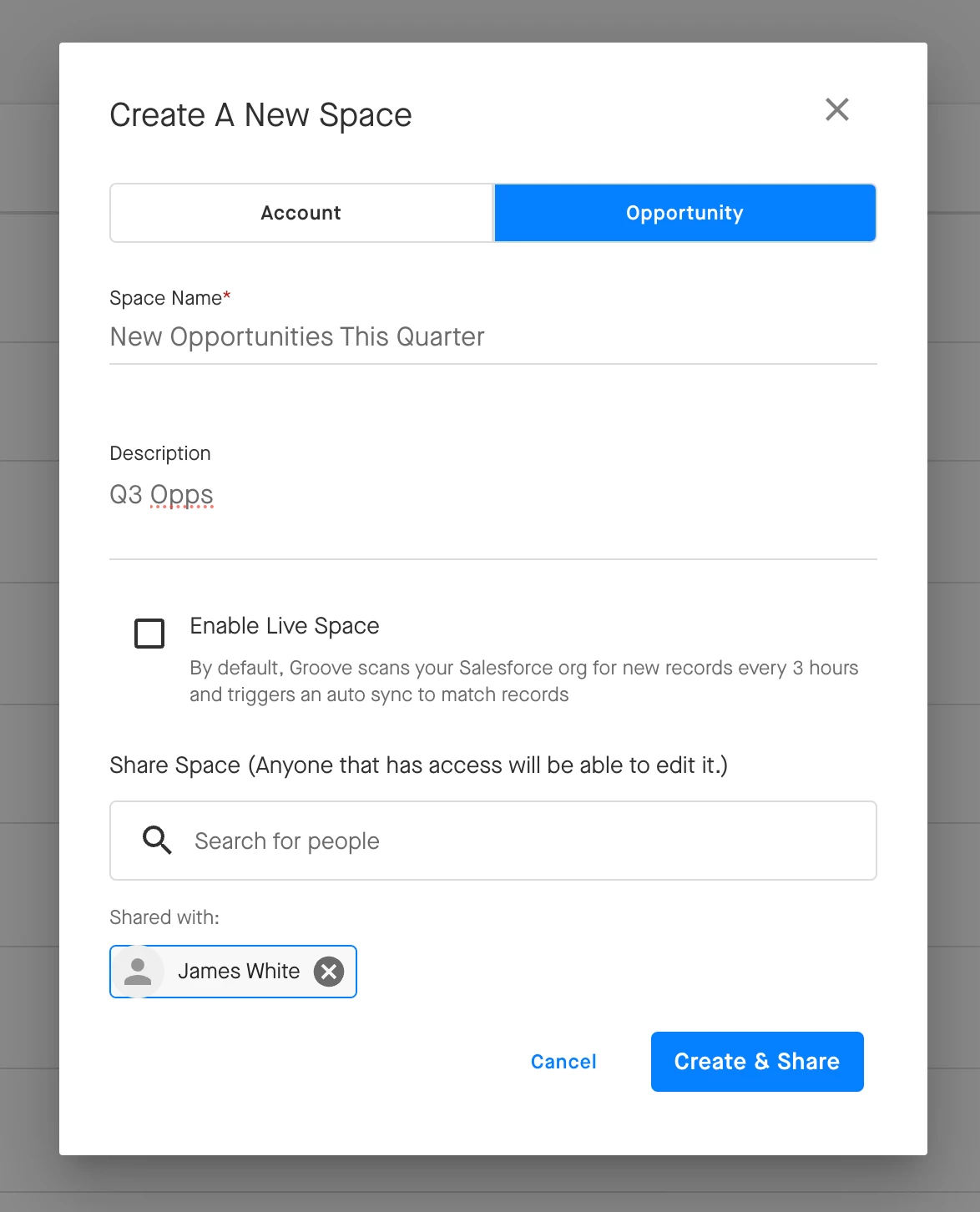
Choose from one of the options shown above. Then select Opportunity or Account, add a description, and search for the members of your team(s) who you want to collaborate with. Finally, Create & Share the Space.
Too add more Accounts/Opportunities to your Space later, simply click the button in the top right of your Space and search for those you wish to add.
Live Space
With a Live Space, you can connect your Space to a Salesforce report that will automatically import the Accounts/Opportunities in that report to your Space. Groove will also scan your Salesforce report for new records and update your Space to match. This also includes removing Accounts/Opportunities from the Space if they are no longer included in the SFDC report.
Note that because a Live Space is intended to be a 1:1 match with your linked SFDC report, Accounts/Opportunities cannot be added to a Live Space manually.
To enable Live Space, select the checkbox during the Space creation workflow (seen above), or open the Live Space Settings tab in your Space and click + LIVE SPACE CONNECT.

-
Choose a Folder from the report folders in Salesforce.
-
Select a Report.
-
Groove will verify the report contains opportunities or accounts as appropriate.
-
Save.
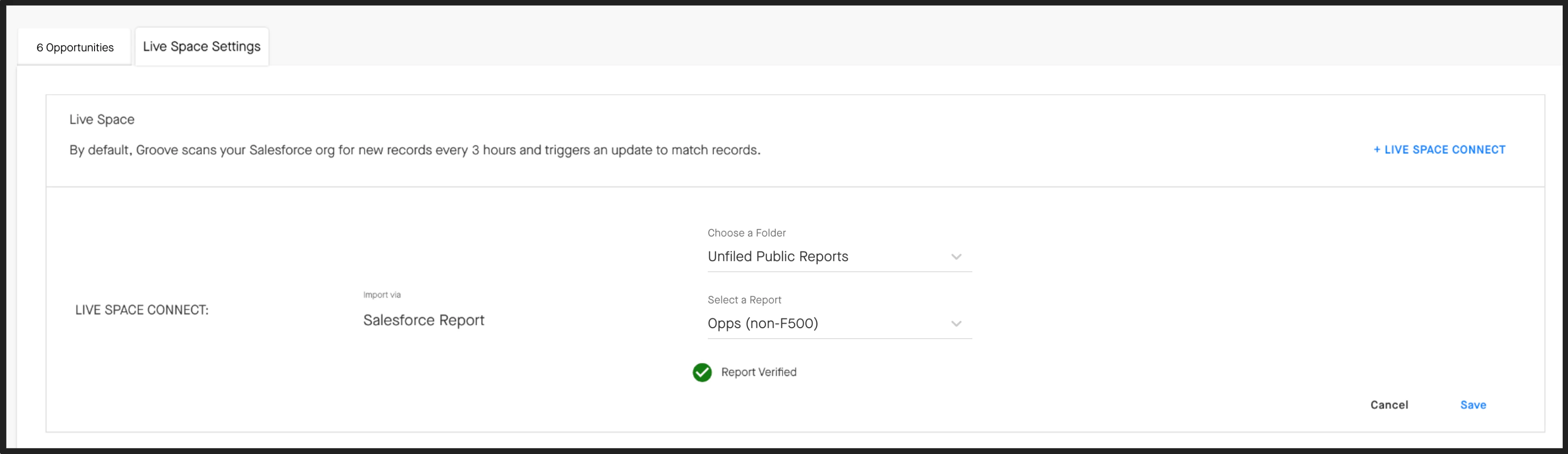
Once you've connected your Spaces to a report, you can manually refresh to obtain the latest Opportunities or Accounts to pull in your Spaces, edit your chosen report, or delete your report.